
Houdini & Procedural Workflows / Houdini
Tiki Hut Tutorial | 3D Procedural Modeling in Houdini - Part 04
Written guide
Playing loads YouTube content. YouTube processes data after activation.
Watch on YouTubeIf the player is blocked or unavailable, use Watch on YouTube.
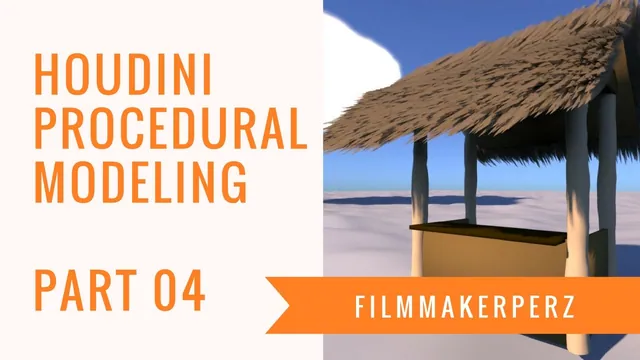
Turn the tiki hut’s existing roof panels into a thatched roof by generating fur on selected faces and grooming it into a layered covering. Part 4 focuses on the difference between an untouched hair system and a roof: density, strand thickness, direction, uneven edges and golden color all contribute to the result.
The roof geometry and its OUT_ROOF null already exist from earlier parts. This lesson uses a historical Houdini fur shelf and grooming interface; the exact build is unverified. It develops a local preview rather than a finished lighting or material package for the entire hut.
Isolate the roof surface that will generate the covering
At 00:00, name the main hut object clearly and create a separate geometry object for the roof covering. At 01:01, use Object Merge to import the existing OUT_ROOF output into that object.
Select only the roof primitives that should receive grass. At 02:02, use Add Fur from the hair tools. The generated strands initially look like upright, chaotic fur, which establishes that generation works but does not yet produce thatch.
Hide the extra imported roof object’s visible surface once it has served as the generation source. The original hut still supplies the structural roof. This separation gives the instructor a place to adjust the covering without navigating through the entire hut construction.
Inspect the selected surfaces before grooming. Styling cannot compensate cleanly for hair generated on the wrong faces or for an unintended duplicate roof surface in the render.
Balance density, thickness and material before detailed brushing
At 03:02, the first render confirms an overly furry appearance. Reduce density before refining the shader so individual strands can read as thicker roof material rather than a dense coat.
At 04:03, reduce the material’s reflective intensity and add some intensity variation. At 05:02, vary strand length and increase thickness. The source tests 0.01 and then 0.1, judging the result in the scene rather than establishing a universal width.
At 06:01, an environment light makes the preview easier to assess. Density and strand thickness interact visually: increasing both can hide gaps, but can also replace the desired separate strands with an indistinct mass. Compare the silhouette and surface coverage in the same view before proceeding.
The recorded values belong to this hut’s scale and historical fur setup. The lesson does not establish equivalent settings in a newer grooming system.
Groom both slopes with enough lift to retain volume
At 06:01, select the grass object before activating Screen Brush. The instructor initially has the environment light selected, illustrating why the active object matters when a shelf tool does not engage the expected geometry.
At 07:02, increase brush strength and retain some lift so the strands do not collapse flat into the roof. Brush the covering down the slopes, then repeat on the opposite side.
At 08:00, feather the edges and pull some strands over the sides. A flipped or excessive stroke is undone rather than accepted as part of the design. Work in small passes so the result retains a deliberate direction while avoiding an unnaturally smooth border.
The source uses repeated inspection and undo. It does not provide a single brush setting that creates the complete roof automatically. Judge each stroke against the slope and the intended layered silhouette.
Use render feedback to revise length and the ridge
At 09:01, a test render suggests fewer, longer strands and a less brown color. At 10:01, the instructor lowers the density-related value to about 400, hides guide display and inspects the generated result.
An attempted length adjustment does not initially have the expected effect. At 11:02, a Length Scale control in the displayed interface produces a visible change. The captions do not establish whether every display-related adjustment is a final render override, so inspect a rendered result rather than treating a viewport change alone as proof.
Return to Screen Brush after increasing length. The instructor reduces excessive lift and pushes the longer strands toward the intended direction. Around 12:00, the ridge where the two sides meet looks awkward, so the strands are bunched there and another preview is made.
This is an artistic correction to the visible join. The source does not perform a geometric intersection audit or demonstrate a general procedural solution for every possible roof dimension.
Shift the colors toward gold and cover the remaining edges
At 13:01, adjust root and tip colors separately. The instructor lightens them, increases saturation and keeps a difference between the ends so the covering does not become one flat color.
At 14:01, enlarge the roof’s source geometry slightly along X, starting around 1.1 and then increasing it further, to improve edge coverage. Check that this change affects the intended covering source rather than accidentally resizing the complete hut.
The accepted result has longer groomed strands, a more golden appearance and better edge coverage. Broader hut shaders are deferred to the next lesson. The useful review sequence is generation region, strand density and width, groom direction, ridge treatment, then color and coverage—each checked against a preview rather than inferred from parameter values alone.