
Houdini & Procedural Workflows / Houdini / Python
Day 2 - Houdini Hou Module | Houdini 10 Day Introduction to Python
Written guide
Playing loads YouTube content. YouTube processes data after activation.
Watch on YouTubeIf the player is blocked or unavailable, use Watch on YouTube.
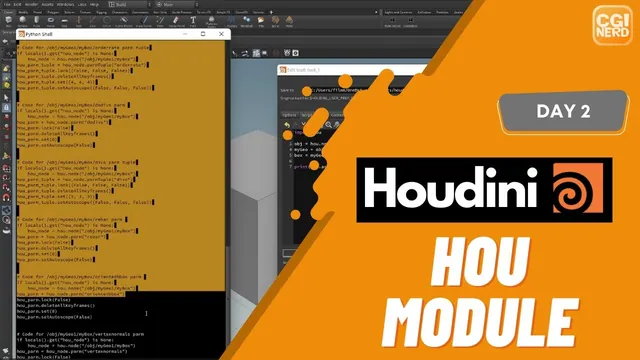
The second Python lesson introduces hou, the module used to interact with Houdini’s scene and nodes. Its small automation creates a Geometry object, creates a Box inside it, and places those operations on a shelf button. The point is to understand how a node reference determines where the next operation happens.
The preceding scripting-interface lesson distinguishes the Python Shell from shelf tools and other execution contexts. Here the Shell is used to explore individual commands before combining them into a button. The recording’s exact Houdini and Python releases are unverified; the command spelling below is clarified against SideFX documentation where automatic captions omit capitalization and punctuation.
Find the relevant API and reference the object network
From 00:00, open Houdini’s help contents, locate Python scripting, and browse the hou reference. The instructor distinguishes hou.node, with a lowercase n, from the similarly named class entry. The lowercase function looks up an existing node by path.
Around 02:01, import hou and reference /obj, the object network. Store that reference in a variable:
import hou
obj = hou.node("/obj")
This is a normalized spelling of the demonstrated operation, not a verbatim extraction of the on-screen script. SideFX’s hou.node reference documents path lookup and the None result when no node exists at the requested path.
The variable obj now refers to the network; it does not create a new Geometry object by itself. In the interactive Shell, looking up the path displays a node representation, whereas assigning it to a variable retains the reference for subsequent commands. The instructor notes that the interactive environment may already provide hou, while still writing the import to make the script’s dependency explicit.
Create a child node and retain its reference
At 03:02, call createNode on the object network to make a Geometry object. The first argument identifies the node type, such as geo; the optional next argument supplies the requested instance name. Those are different pieces of information: changing an instance name does not change the kind of node created.
The lesson first repeats the full /obj lookup, then shortens the operation by using the saved obj variable. Store the newly created Geometry object as another variable so later commands can act inside it.
SideFX’s createNode documentation confirms that creation happens as a child of the receiving node and that the method returns the new node. It also explains why repeated executions can produce numbered names when a requested name is already occupied.
This makes the network hierarchy central to the script. Creating a Geometry object under /obj and creating a Box SOP inside that Geometry object require different receiving node references, even though both operations use createNode.
Discover type names and build the box inside the container
From 05:01, inspect node information in the interface to find the internal type names. The Geometry object’s type is geo, and the Box’s type is box. The readable label in the interface and the internal string accepted by the API need not always be the same.
Use the saved Geometry reference to create the Box within it. A compact, normalized version of the demonstrated construction is:
import hou

obj = hou.node("/obj")
my_geo = obj.createNode("geo", "myGeo")
box = my_geo.createNode("box", "myBox")
The variable spelling is editorially standardized for readability. The sequence follows the recording: find the parent network, create the container, retain the container, then create the child inside it. It is intended for Houdini’s Python environment and has not been executed as a software reproduction for this article.
Inspect both network levels after running the example. At object level there should be a Geometry object; inside it there should be a Box. Finding a new object at /obj alone does not verify that the child creation line succeeded. This lesson does not yet set dimensions, connect a chain of SOPs, or manage display flags as a general tool.
Move the tested sequence to a shelf button
Around 06:02, create a new shelf tool and place the commands in its Script area. Saving the tool stores the source; clicking the button executes it. The demonstrated button creates a Geometry object containing a Box.
Keep the variables within the same script so that each click establishes its own references before using them. This avoids depending on a variable that happened to be left in an earlier Shell session. The button is a construction action: invoking it again creates another assembly rather than selecting or editing the one from the previous click.
If the hierarchy is wrong, check the object before the dot in each method call. obj.createNode(...) creates within the object network; my_geo.createNode(...) creates within the Geometry object. That distinction is more useful for this exercise than memorizing a long command without understanding its receiver.
Inspect reconstruction code without confusing it with implementation
From 08:00, the instructor asks the Box node for code that can recreate it. An initial capitalization error fails, then the corrected method works. The documented spelling is:
print(box.asCode())SideFX documents asCode on hou.OpNode as returning Python source for recreating a node. The output can include creation and parameter-setting operations, with options controlling how much state is included.
The narration loosely describes this as seeing how the node was built. More precisely, the result describes how to reconstruct the node instance and its settings; it does not reveal the internal algorithm implementing the Box operator. That distinction keeps the exercise useful: read the generated operations to learn API patterns, while recognizing that the existing node type still supplies its own behavior.
The lesson ends with a workable route into Houdini automation: discover an API entry, obtain a node reference, create children in the correct network, and inspect the resulting structure. The small box button demonstrates that sequence without pretending to be a finished production tool.