
Houdini & Procedural Workflows / Houdini / Python
Day 1 - Houdini Scripting Interface | Houdini 10 Day Introduction to Python
Legacy TutorialWritten guide
This tutorial is part of the CGI Nerd archive. Some software features, interfaces, or workflows may have changed since it was recorded.
Playing loads YouTube content. YouTube processes data after activation.
Watch on YouTubeIf the player is blocked or unavailable, use Watch on YouTube.
The first lesson in the Houdini Python introduction locates the main places to enter code and shows when each one runs. A simple print statement is reused so the difference comes from the execution context, rather than from increasingly complicated code.
The tour covers the Python Shell, Python Source Editor, shelf tools, parameter expressions, and a Python geometry node. It does not yet build a geometry-processing script or explore the hou API in depth. The recording’s exact Houdini and Python versions are unverified.
Use the Shell for an immediate result
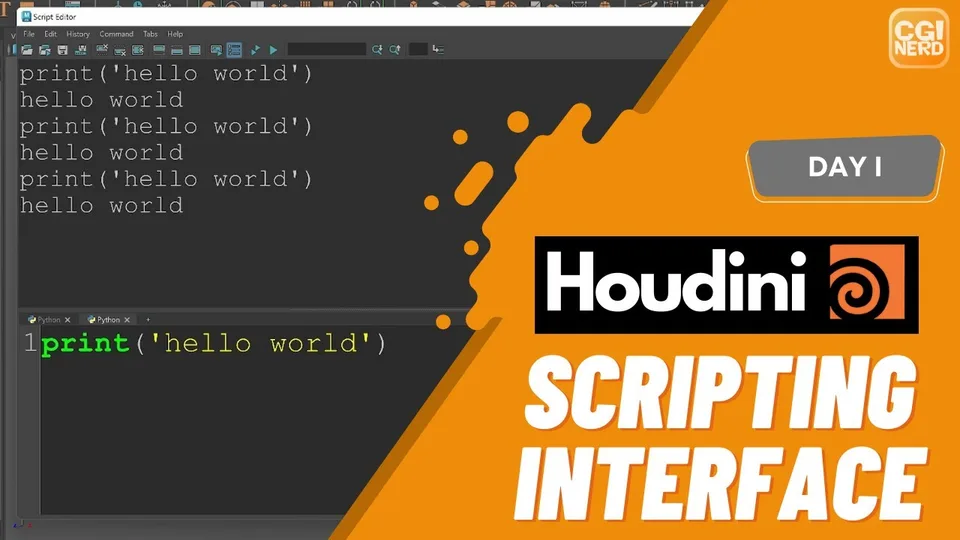
At 00:10, enter a simple print statement in Houdini’s Python Shell. A conventional spelling of the demonstrated example is:
print("Hello world")Executing it displays the message in the Shell. This gives a small, observable test that the code was run. The transcript sometimes sounds like “shelf” when describing this first interface, but the immediate command-and-output interaction is the Python Shell; the shelf-button example is a separate step later.
For following the lesson, keep this example unchanged while moving between interfaces. That makes it easier to distinguish a code problem from a question about where output appears or what triggers execution.
Understand what Apply does in the Python Source Editor
Around 00:45, open the Python Source Editor and enter the same print operation. Clicking Apply executes the demonstrated source, and clicking Apply again prints another message. The editor supports longer code than the one-line Shell example, but its execution behavior matters as much as its space for typing.
The narration loosely describes code running when a file or program starts. The precise scene-specific behavior is documented by SideFX’s Python script locations guide: the Source Editor edits the scene’s session-module source, saved with the scene and evaluated when the scene loads or the source is edited. Other Python code accesses that module as hou.session.
This clarification does not make every ordinary .py file an automatic startup script. The useful lesson is to choose deliberately between code that is evaluated with the scene and code that should run only after an explicit action.
Make an explicitly triggered shelf tool
From 01:39, create a new shelf tab with an internal name and readable label. Add a new tool, name it Hello World, and place the print statement in its Script area. The recording leaves the default icon, while mentioning that another image could be chosen.
Apply and Accept save the tool definition without running the example. Clicking the resulting shelf button executes it. This is the key contrast with the Source Editor demonstration: saving a tool and invoking a tool are separate actions.
The instructor then opens Edit Tool on existing shelf tools to inspect their scripts. Reading those definitions can reveal how Houdini invokes a command. This lesson uses them for orientation; it does not modify a built-in tool or explain every function those scripts call.
Recognize expressions and geometry-node code as different contexts
Around 03:01, create a Geometry object and inspect its parameter expression language. The demonstrated default is HScript; switching to Python changes the language used for expressions entered in that context. Copy Parameter and Paste Relative Reference then produce a Python-form reference, which the instructor undoes after showing it.
This is not the same as converting the whole scene or every existing expression to Python. The example demonstrates choosing the language for the relevant parameter context. It does not supply a broader conversion tool.
At 04:01, create a Python node inside the geometry network and enter the print example there. Connecting geometry causes the node’s code to execute in the demonstration; reconnecting produces another message. This node is intended for work on incoming geometry, although the lesson only prints text to make its execution visible.
Do not infer that such a node runs exactly once during a session or only when a user clicks a button. The observed execution is tied to evaluating the node in the network. The lesson leaves actual geometry access and the hou module for later instruction.
Keep code storage separate from how it is invoked
From 06:01, the instructor describes teaching on workstations that are regularly reimaged. As a practical way to retain a copy with a scene, code may be stored in an unconnected Python node, even when its eventual purpose is a shelf tool. Saving a separate Python file is also mentioned.
That is a storage tactic, not a deployment system or proof that an unconnected node can never be evaluated. The example’s main distinction is between retaining source text and deciding how it will run later.
After this tour, the same short script should be understandable in five roles: an immediate Shell command, scene-module source, a shelf-button action, a parameter expression context, and code evaluated as a geometry node. Knowing those contexts provides the foundation for later automation without confusing a successful print test with a finished Houdini tool.