
Crowds & Simulation / Houdini & Procedural Workflows / Houdini
Houdini Tree Swing Vellum Solver Tutorial
Written guide
Playing loads YouTube content. YouTube processes data after activation.
Watch on YouTubeIf the player is blocked or unavailable, use Watch on YouTube.
A tree swing can be simulated with two subdivided lines and a very simple seat, then given thickness after the motion is solved. This lesson uses Vellum to combine string-like ropes, a cloth-based plank, fixed upper endpoints, and glue connections at the seat. Mild changing wind supplies movement without animating the swing by hand.
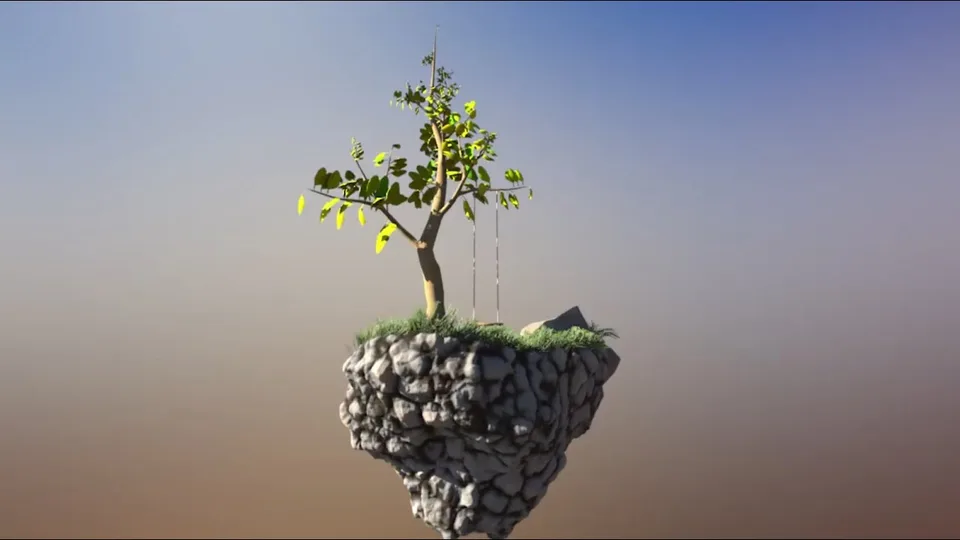
The starting scene already contains a tree, camera, lighting, and grass. Those elements provide placement and composition; the tutorial builds the swing inside the scene’s geometry network. The exact Houdini release is unverified. The result is a stylized swing for the demonstrated camera distance, not a tested model of a real load-bearing structure.
Position two ropes and a minimal seat
From 01:01, create a Line and position it beneath the intended branch. The instructor switches between top and perspective views to distinguish X placement from forward/back movement in Z, briefly aligning to the wrong branch before correcting it. Establish which branch supports the swing before fine-tuning rope length.
Adjust the lower end to a plausible seat height, then lengthen the line upward to meet the branch. Use a Transform branch to create the second rope and offset it sideways. The demonstrated spacing is judged visually; a spoken estimate in feet is immediately reconsidered because the scene scale does not match it. Treat the final 0.2 offset as an example scene value, not a conversion to physical units.
Around 06:00, increase the line from two points to about 20. Two endpoints describe a straight segment but offer no intermediate shape for the rope to bend through. The extra points provide the simulated curve with internal resolution.
Create the seat from a Grid with rows and columns reduced to two each, leaving four corner points. Scale and position it between the rope bottoms, using the front view to judge alignment. The seat stays flat and simple during simulation; its visible thickness is added later. Temporarily hide the grass to make this construction easier to inspect and faster to display.
Select only the upper endpoints for pinning
At 10:08, add a Group by Range before the original line branches into the two rope positions. This placement allows the same endpoint selection to travel with both copies. Change the group type from primitives to points and name the pin selection clearly.
The intended selection is the last point of each line. Point numbering begins at zero, so a line with 20 points ends at point 19. That reasoning is sound, but the instructor’s attempted $NPT expression fails in the chosen parameter context. Subtracting one or two does not cure an undefined variable.
The working replacement appears around 14:02: copy the Line’s point-count parameter, paste a relative reference into the endpoint-selection parameter, and subtract one from that referenced count. The transcript does not expose the final node path and expression punctuation, so reproduce the reference through Houdini’s parameter menu rather than copying an invented path.
Inspect the highlighted selection after both ropes are merged. Only the upper points should be selected. These points remain fixed in space; the lower ends must move with the seat. Accidentally pinning the bottoms would defeat the swing’s motion even if the ropes and plank appeared connected.
Give ropes and plank their own constraints
From 15:03, create separate geometry groups for rope and plank. These identify which pieces receive each kind of constraint after the components are combined.
Use a Vellum Constraint configured for String on the rope group, then connect the resulting geometry and constraint streams to a Vellum Solver. Initial playback shows gravity affecting the assembly. Assign the previously created pin-point group so that the upper rope ends remain in place.
The instructor observes that the seat initially seems to stay with the ropes, but does not rely on that incidental behavior. Add a Vellum Cloth Constraint restricted to plank. The four-point seat has no internal grid of vertices to fold into many segments, producing the stiff-looking plank used in this shot. This observation does not establish that every four-point cloth surface is an exactly rigid object under arbitrary forces.
At each stage, restart playback and inspect two different things: the upper endpoints should remain fixed, while the lower assembly should be free to respond to gravity. A stationary seat alone does not prove that the intended constraints have been assigned correctly.
Glue the seat to the ropes and introduce movement
Around 18:00, the instructor first looks for an Attach to Geometry operation, then replaces that choice with a Vellum Constraint set to Glue. The selected relationship is from the plank to the rope geometry. This is the movable connection between components; it serves a different purpose from the fixed upper pins.
Display the glue connections. With one constraint per point, the instructor is concerned about the seat twisting if a connection fails. Increase Constraints per Point to two and inspect the resulting links at the seat corners. The recording shows a more supported connection pattern; it does not test every possible breakage scenario or provide a universal stability setting.
From 20:03, add wind in the Vellum Solver’s X and Z directions. The values are based on a random function of the frame number, with the seed for one direction multiplied by another value so both directions do not receive the same sequence. The exact multiplier is not clearly spoken. The supported procedure is to give the two axes differing frame-driven values and then judge the resulting motion.
This produces small changes in the swing’s position instead of a static hanging assembly. Watch the attachment points as well as the overall movement: the top should remain pinned, the seat should remain joined to the ropes, and the applied wind should produce the amount of motion needed for the shot.
Add thickness after simulation
At 22:01, add Vellum Post-Process and use its thickening option for the plank. Keeping this operation after the solver lets the simulation work with the simple seat while the displayed result gains visible depth.
Use PolyWire to give the rope curves thickness. Its initial result affects more geometry than intended, so filter the operation with the retained rope group. Reduce the radius from the oversized initial result and add circumferential divisions for the desired appearance. The narration gives a radius value without a reliable view of its parameter scaling; use the demonstrated visual relationship to the seat rather than treating that number as a physical rope diameter.
Assign a brown color to the plank and a lighter color to the ropes. The first rope-color placement does not affect the generated wire as intended. Moving the color operation after PolyWire resolves the demonstrated result. This is a practical inspection point: a correct group on the simulation curves does not by itself prove that a downstream generated surface is receiving the intended color assignment.
Merge the finished swing back with the scene and play the animation. The tree already has some animation for other planned work, but the lesson does not create leaf dynamics or demonstrate a robust attachment to an arbitrarily deforming branch.
Finish the visible tree connections for the camera distance
From 26:07, add small torus shapes near the upper rope ends as a visual suggestion of ropes tied around the branch. Position and rotate them, copy the rope color, then use a Transform and Merge to place a second shape. One attempted wire reconnection fails and is corrected manually.
These rings are finishing geometry for the shot. They do not replace the Vellum pin groups or simulate the mechanics of a knot around the tree. The instructor explicitly judges their detail at the planned, relatively distant camera view and notes that a close shot would need more work.
The completed scene therefore has two levels of construction: a small constraint network responsible for motion, and downstream geometry responsible for thickness, color, and the appearance of attachment. Keeping those roles readable makes it easier to diagnose whether a problem belongs to the simulation or simply to the final presentation.