
Character FX & Animation / Houdini & Procedural Workflows / Houdini
Rigging Revolution | Simple APEX FK Rig
Written guide
Playing loads YouTube content. YouTube processes data after activation.
Watch on YouTubeIf the player is blocked or unavailable, use Watch on YouTube.
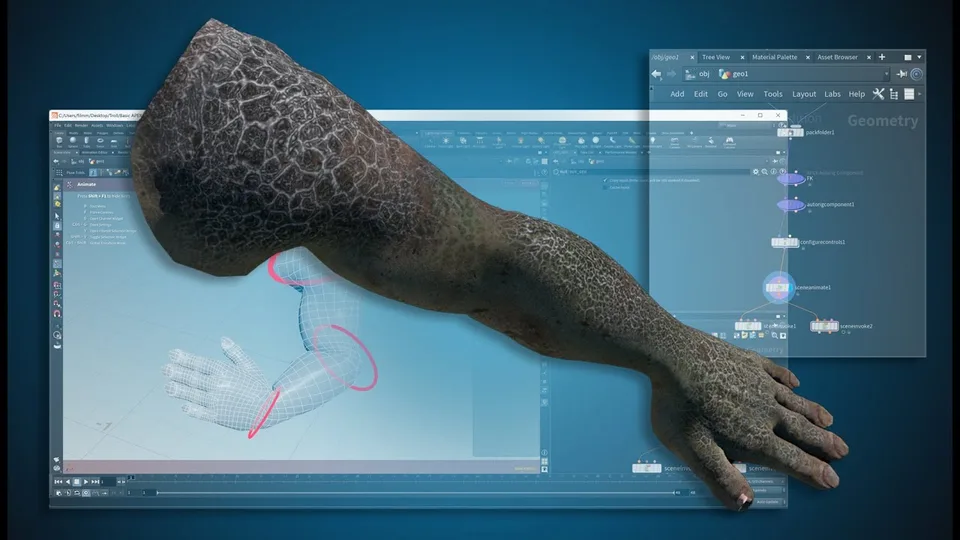
A simple FK arm is a useful way to separate the responsibilities of an APEX rig: a named and oriented skeleton, captured skin, controls that move the skeleton, a deformation component, and a scene from which geometry can be evaluated. This lesson builds a shoulder–elbow–wrist chain, tests animation, then replaces the default control shapes with easier-to-select torus shapes.
The arm has already been isolated and cleaned from an imported character before the walkthrough begins. That preparation is not shown in detail. The exact Houdini build is unverified, and the automatic transcript has a substantial incomplete passage during capture-to-packing setup. The guide identifies that gap instead of presenting the missing connections as a fully reproducible recipe.
Position and connect the three joint points
At 00:14, use an Add SOP to create a single point, then position it for the arm chain. Duplicate the point-creation nodes and place the shoulder, elbow and wrist using multiple views. Check the wrist’s rotational location in perspective as well as the front view; a point that looks centered in one projection can still be misplaced in depth.
Merge the three points in shoulder, elbow, wrist order. At 02:02, another Add SOP uses its polygon-by-group settings to connect the merged points. Point-number display makes the resulting order visible: 0, 1 and 2 correspond to the three intended joints in this construction.
The order is part of the setup, not merely a display preference. Inspect it before relying on numeric selections for names. A changed merge order would require reconsidering those selections rather than retaining the same numbers blindly.
Create skeleton data and correct the name attribute class
The Name SOP assigns shoulder, elbow and wrist names, but its initial attribute class is wrong. The error becomes visible when the subsequent Rig Doctor supplies default names rather than preserving the intended ones.
At 03:01, the instructor starts Joint Capture Biharmonic and encounters an error because the connected points and edges are not yet a complete skeleton representation. Insert Rig Doctor, initialize transforms and enable reorientation toward the child. The joint axes then follow the chain instead of retaining the initial world alignment.
At 04:02, inspect the geometry spreadsheet. The Name SOP was naming primitives, while the joints are points. Change the naming operation to the point class and verify the three point names. This is a different issue from joint position or orientation: the geometry can be in the right place while the rig receives the wrong identifiers.
Keep the capture inputs conceptually distinct: the arm mesh is the geometry to deform, and the prepared skeleton supplies joint information. However, the transcript’s incomplete passage runs from roughly 04:29 to 05:30, spanning part of the transition into packing. It does not provide all final capture settings or wire connections. Use the original video’s visible network to confirm that transition before rebuilding it; no exact weight-quality or capture-setting claim is supported here.
Package the data and add both FK and deformation components
At 05:30, the narration resumes with the shape and skeleton being named in a Pack Folder setup using a base stem. Select the appropriate shape and skeleton types from the menus rather than trying to reconstruct a suffix from the caption “scale.” SideFX’s Pack Folder reference explains that names and type extensions organize packed inputs; it does not recover the missing recorded wiring.
At 06:01, add an APEX AutoRig Component using FK Transform. Controls become available and can rotate, but the geometry does not yet deform. Add another AutoRig Component for Bone Deform. The next test shows the skin responding.
This is the central diagnostic in the lesson: having controls and having deformation are separate checkpoints. If the controls move but the skin does not, inspect the deformation component and its data relationship rather than immediately rebuilding the control shapes. The source demonstrates a working result after that component is added, without establishing a full production weighting review.
Animate a test and retrieve the evaluated outputs
At 07:00, append APEX Scene Animate. The test uses keys at frames 1 and 48 for matching endpoints, with a different pose at frame 24. Limit playback to that range and view it in real time to inspect the deformation.
The rig and its geometry are still held in the packed scene structure. APEX Scene Invoke evaluates an output for use in the geometry network. The first node reports a missing-input error until connected. Select the demonstrated base.rig output, then choose the shape for the geometry result. A duplicate invocation selects the skeleton instead, allowing the animated skeleton and deformed geometry to be accessed separately.
The current APEX Scene Invoke reference describes a newer 2.0 interface. It confirms the evaluation role, but its controls should not be substituted silently for the recorded interface. This lesson does not demonstrate FBX export or a downstream application test.
To return to setup work, remove the test keys. The source deletes the middle key and endpoints, then uses Reset All when a posed result remains. Key deletion and restoring the controls’ default pose are distinct operations; verify both before judging the placement of new control shapes.
Configure readable controls and retest the same motion
At 09:01, add APEX Configure Controls and create a configuration entry for the wrist. Select the actual control from the group menu, enable a torus shape override, and use shape offsets to rotate, scale and move the visible control around the wrist. The example starts with a 90-degree orientation adjustment and uses red for the control color.
Add separate entries for elbow and shoulder. Each receives its own shape offset and size. The shoulder orientation includes an axis-selection correction before the shape looks right. These are adjustments to the control’s displayed shape; do not confuse moving the torus with repositioning the skeleton joint that was established earlier.
Return to Scene Animate, reset the controls and check that the new shapes are selectable. Repeat the endpoint and middle-pose animation test. The first middle pose is too extreme and is reduced before the final playback.
The completed example demonstrates a short FK deformation with custom control shapes and separately evaluated geometry and skeleton outputs. Inspect the chain order, point names, joint axes, skin response, reset pose and output selection as separate checks. The missing capture/packing passage, prior arm cleanup and unverified version remain the main limits when using this article to accompany the video.