
Unreal Engine & Blueprints / Unreal Engine
How to Make a Procedural Fence in Unreal Engine 4 with Splines | UE4 Tutorial
Legacy TutorialWritten guide
This tutorial is part of the CGI Nerd archive. Some software features, interfaces, or workflows may have changed since it was recorded.
Playing loads YouTube content. YouTube processes data after activation.
Watch on YouTubeIf the player is blocked or unavailable, use Watch on YouTube.
This Unreal Engine 4 lesson builds a fence along an editable spline. An Actor Blueprint’s Construction Script creates mesh segments whose start and end positions follow distances along the curve. Extending the spline changes the generated fence in the editor.
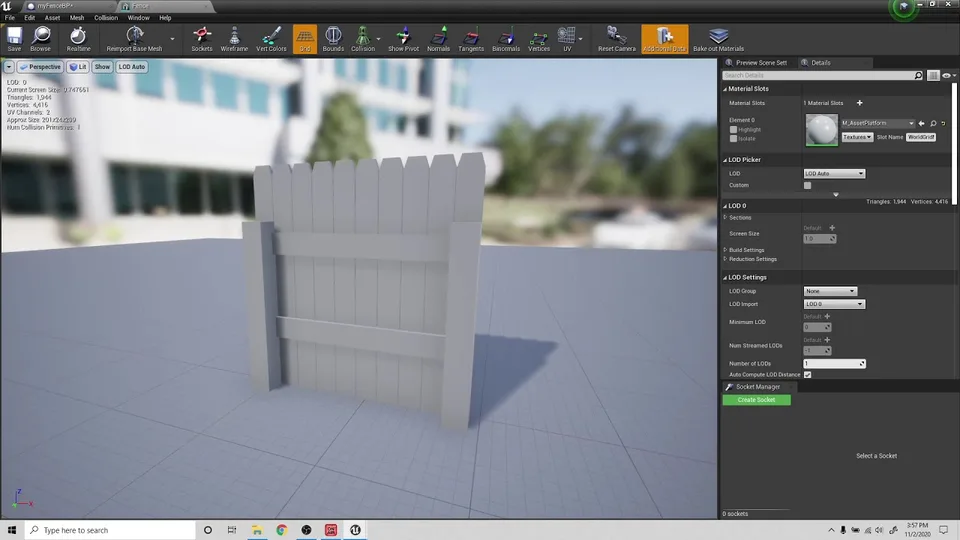
The required asset is a repeating piece of geometry with a known length and forward direction. The instructor’s fence runs along its local X axis and measures 202 units. Those values belong to his mesh. Using another mesh requires inspecting its own orientation and dimensions before copying the graph’s assumptions.
Keep the path separate from the generated segments
The instructor creates an Actor Blueprint and adds a Spline component, explicitly distinguishing it from a Spline Mesh component. The spline defines the path. Individual Spline Mesh components are then created by the Construction Script to display portions of the fence along that path.
He creates a float variable called Length for the source mesh’s length. The Construction Script gets the spline length, divides it by that segment length and truncates the result for a For Loop’s Last Index. The recording uses this to drive repeated component creation.
There is an important limit to that demonstrated counting rule. Truncating a ratio produces an integer, but it does not by itself establish correct handling of the final partial segment or every short spline. Epic’s flow-control reference identifies Last Index as the loop’s final index; it should not casually be described as a count. This is supplementary documentation context. Inspect the endpoint result before adopting the recorded graph as a finished general-purpose tool.
Create a segment with the right orientation
Within the loop, the instructor uses Add Spline Mesh Component, assigns the fence mesh and sets the forward axis to match the mesh’s X direction. The returned component is the target for later configuration.
This target relationship is easy to lose in a large graph: the component you just created must receive the axis and start/end settings. Supplying correct positions to a different component would not establish the intended fence segment.
The exact recording version beyond Unreal Engine 4 is not verified. The article follows its Construction Script approach and does not claim a tested UE5 migration.
Sample positions and tangents at two distances
The segment index and mesh length define its start distance along the spline. The next index—current index plus one—defines the end distance using the same length. The instructor samples both location and tangent at those distances, then supplies them to Set Start and End on the generated spline mesh.
In the intended relationship, segment zero starts at the beginning, segment one starts one mesh length along, and each segment’s end is one step farther than its start. The spline turns those distances into positions and directions along the curve.
The location and tangent have different jobs. The location establishes where an endpoint sits; the tangent describes the direction and extent of the segment’s bend at that endpoint. The instructor inserts Clamp Vector Size for the tangents, with the mesh length connected to the maximum, because the direct tangent connection creates scaling problems in his setup.
Inspect the start and end sides symmetrically. Both require the spline reference and corresponding sampled data, but the end uses the incremented index. Accidentally reusing the same distance on both sides would not represent the interval the lesson intends.
The captions do not establish all coordinate-space settings or a complete wire-by-wire graph. Those details still need on-screen inspection, particularly when adapting the Blueprint to a transformed actor or a different mesh.
Diagnose the demonstrated empty result
The instructor compiles and places the Blueprint, but the first test does not generate the expected fence. He discovers that the Length variable exists without the required default value. Setting it to his measured 202 and recompiling produces the fence.
This connects the symptom to an earlier dependency. The graph’s distances and loop calculation use Length, so merely creating a variable with the right name is insufficient. Check that its value is present and appropriate to the source mesh before changing spline settings.
Afterward, moving and extending the path changes the generated segments. Inspect both the fit along the curve and the endpoint. The recording does not test every extreme curvature, short length or remainder case.
Add collision as a separate behavior
The generated fence looks right but initially allows the player character to pass through. The instructor adds Set Collision Enabled for the created segments, recompiles and tests again. The character is then blocked in his example.
This is a separate checkpoint from visual generation. A mesh visible in the level does not prove that its collision participates in the intended gameplay. Conversely, this single successful test does not establish a complete collision-profile policy for other objects or projects.
Review the graph in useful stages
Caption-supported ranges are 00:00–02:03 for the desired result and mesh measurements; 02:03–05:01 for the Actor, spline and loop; 05:01–08:03 for components, axis and sampling; 08:03–11:02 for tangent handling and end distances; and 11:02 onward for the missing Length default and collision test. These are reading references, not official chapters.
The completed example demonstrates procedural placement along a path and a basic collision correction. It does not establish production-ready segment counting, endpoint trimming, coordinate-space handling or modern compatibility. Keep those as technical review items while using the source’s clear dependencies—mesh length, sampled distances, generated component and collision state—to follow the video.