
Maya & Python Scripting / Maya / Python
Exporting Many Files in Maya at the Same Time Using Python Scripting
Written guide
Playing loads YouTube content. YouTube processes data after activation.
Watch on YouTubeIf the player is blocked or unavailable, use Watch on YouTube.
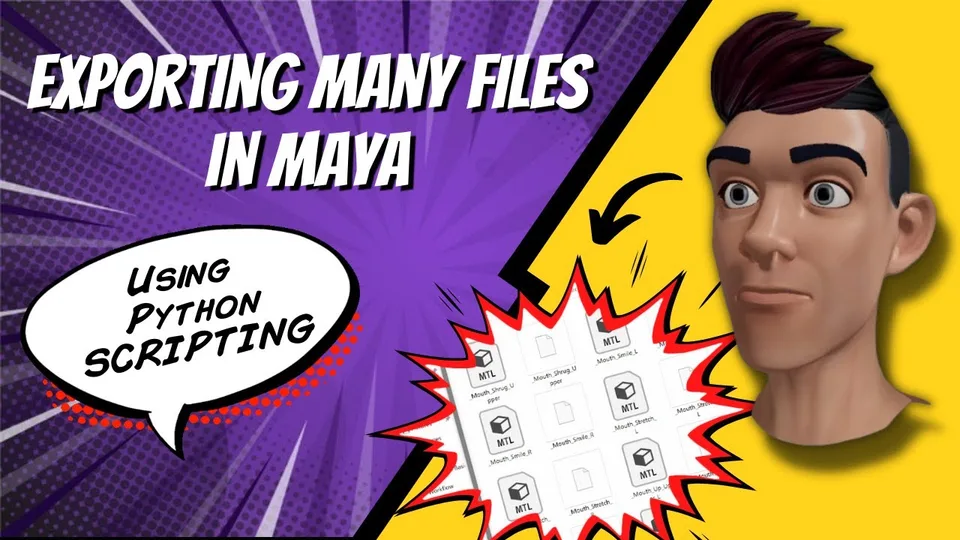
The scene in this lesson contains a base head and multiple prepared blend-shape meshes. The task is to export each selected shape into its own OBJ file so that modelers can work on the shapes individually. The script replaces repeated Export Selection operations with a selection list, a loop and a destination derived from the Maya project.
You need an existing set of exportable meshes and a chosen project directory. This lesson does not create the blend shapes or validate their topology. It also does not establish an exact Maya version.
Capture the selection before changing it
During 00:00–04:01, the instructor imports maya.cmds as mc, stores the selected objects with mc.ls and prints the list. That first inspection checks whether the script is about to process the intended meshes.
A loop then changes each object’s visibility as a simple test. The first run has no useful selection, so the instructor selects the shapes and repeats it. Seeing them become visible confirms that the loop reaches the intended objects.
The export stage will select one object at a time. Keeping the original batch in a variable allows the loop to continue through all requested objects even as Maya’s active selection changes. The original list and the current single-object selection serve different purposes.
The source also discusses hiding the objects again after export. This is scene-state behavior, not proof that a file was successfully written. The demonstrated script is not shown restoring every object’s prior visibility state individually.
Derive and inspect the output path
Around 04:01–08:01, the instructor sets the Maya project and queries its workspace root. Printing that result confirms which project directory the script will use.
The output name combines the workspace path, an object-based name and the .obj extension. Before calling the export command, he prints the constructed names for the selected objects. This catches path and naming mistakes before a batch write.
Inspect the complete destination, including separators and the final extension. A correct project root does not guarantee that the appended subfolder or filename is correct. The transcript does not establish robust handling of namespaces, duplicate short names or characters unsuitable for filenames; those remain limitations when adapting this example.
Export the current object with the correct translator
The loop selects each object, then calls Maya’s file command with Export Selected enabled. That selection step is what makes the batch produce separate files rather than repeatedly exporting the whole original selection.
The first format attempt uses OBJ as the type and fails. After investigating, the instructor changes the translator name to OBJexport, and the batch writes the files around 10:04–11:03. The file extension and the translator identifier are related but are not interchangeable arguments.
The folder inspection shows OBJ files and associated MTL files in the recorded export. That is the evidence for successful output here. The video does not reimport each exported mesh or compare its geometry with the original, so this is a file-creation demonstration rather than a complete round-trip validation.
Create the destination folder before using it
The last change places the exports inside a blend-shape subfolder. The instructor initially expects that including a missing folder in the path will create it. The export fails instead.
At approximately 13:02, he manually creates the folder, selects the shapes again and reruns the batch. The files then appear inside it. Preserve that correction: this demonstrated export command does not establish automatic directory creation.
If following the workflow, first verify the selected-object list, then the printed destination names, then the existence of the folder and the expected translator. After the run, inspect the output files. The source does not add overwrite handling, per-file failure recovery or an export summary, so it should not be treated as a finished unattended batch exporter. Its useful core is the separation of batch membership, per-object selection and explicit output paths.