
Maya & Python Scripting / Maya
Creating a Simple Dockable Window in Maya
Written guide
Playing loads YouTube content. YouTube processes data after activation.
Watch on YouTubeIf the player is blocked or unavailable, use Watch on YouTube.
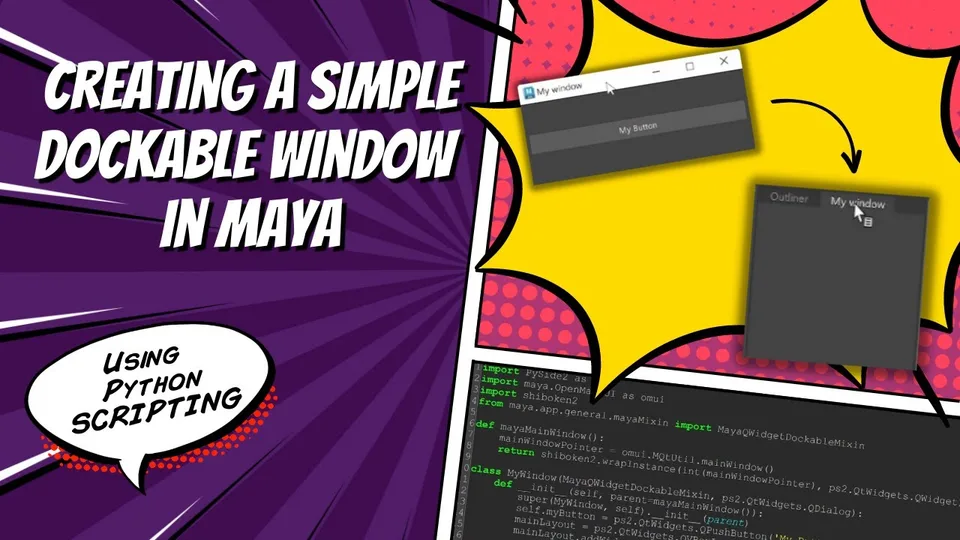
This lesson creates a small Qt window that can dock into Maya’s interface. A placeholder button makes the window easy to see, and a title makes its docked tab identifiable. The button has no action: the subject is window integration, not a finished artist tool.
The recording uses PySide2 and shiboken2. You should be comfortable reading a Python class, its initializer and an inheritance list. The exact Maya release is not established by this transcript.
Connect a Qt widget to Maya’s main window
During 00:00–02:01, the instructor introduces the pieces of the integration. PySide2 supplies the Qt widgets. maya.OpenMayaUI gives access to Maya’s UI, and shiboken2 wraps the main-window pointer as a Qt widget that the Python code can use.
A helper obtains Maya’s main-window pointer and returns the wrapped widget. The new dialog uses that object as its parent. The distinction matters: obtaining a pointer identifies the existing Maya window, while wrapping it supplies the widget object expected by the Qt-side code.
The captions describe the operation but do not reliably preserve the complete import statements, pointer conversion or wrapper call. Follow the on-screen code for those details; this article does not invent an executable transcription.
Add docking behavior to the dialog class
Around 02:01, the instructor creates a window class with MayaQWidgetDockableMixin before the Qt dialog class in its inheritance list. He explicitly emphasizes that order. The initializer accepts the Maya main window as parent and initializes the inherited window behavior with that parent.
The mixin supplies the docking integration used later when the window is shown. Simply creating a normal dialog does not account for that part of the demonstration. When following along, inspect the class inheritance and parent setup before troubleshooting the final show call.
Inside the initializer, a button is added to a vertical box layout. The instructor reports that an empty docked window can become difficult to locate, so the button serves as visible content. The layout arranges that content; it is not the mechanism that makes the window dockable.
Show, dock and identify the window
At approximately 04:04, a main function creates an instance of the class and shows it with docking enabled. The instructor docks the result into Maya. The first tab lacks a useful title, even though the window exists and its button is visible.
He then sets the window title before creating the button. Rerunning gives the docked tab and the floating window the recognizable title My Window. This is a distinct usability check: successful docking alone does not guarantee that someone can identify the tab afterward.
Inspect the demonstrated results in order: the dialog appears, the placeholder is visible, the window docks, its tab has a title, and it can be pulled back out. The source does not test workspace restoration after restarting Maya, duplicate-instance handling or a button callback.
Account for the Qt version before adapting the example
Autodesk documents Maya 2025’s move from Qt5/PySide2 to Qt6/PySide6 in its Qt6 migration guide. Its Maya 2026 PySide guidance uses PySide6 and shiboken6. Those are supplementary version references, not the libraries demonstrated in this recording.
Check the bindings expected by your Maya release before adapting the imports. A version-related import failure and a missing docked-tab title occur at different stages and need different diagnoses. The lasting structure of this lesson is the sequence from Maya parent widget, through the dockable dialog class and visible layout, to a named docked window. Current-version compatibility still requires testing in the intended Maya environment.