
Houdini & Procedural Workflows / Houdini
UVing and Adding Materials to a Fractured Object in Houdini
Written guide
Playing loads YouTube content. YouTube processes data after activation.
Watch on YouTubeIf the player is blocked or unavailable, use Watch on YouTube.
A fractured object has two kinds of surface to texture: the exterior that existed before the break and the interior faces created by the fracture. This Houdini 16 lesson prepares UVs for those regions at different stages, then assigns contrasting materials so their separation is easy to verify.
The example is a simple sphere fractured with Voronoi Fracture. Its two-shell exterior layout and quick interior unwrap are demonstrations of the workflow, not a finished production texture layout. The final render verifies different surface materials using base colors; no painted texture maps are produced.
Inspect the fracture and map the original exterior
At 00:16, create a polygon-mesh sphere, scatter points, and connect the sphere and points to Voronoi Fracture. Use an Exploded View to separate the pieces for inspection. This reveals the new faces inside the object that would otherwise be hidden by the assembled exterior.
Split the viewer into a perspective view and a UV view. The starting sphere has no UV layout in this demonstration, so the UV view is empty. Return upstream to the original sphere to establish the exterior mapping before the fracture creates additional surfaces.
Use Cut Geometry for UV Layout to select an edge loop that divides the sphere into two regions. Create an edge group from that selection and give it a recognizable name, such as the demonstrated sphere UV-shell group. The group preserves the seam selection for the next node.
Add UV Flatten. Its first warning says that the island cannot be flattened because it has no boundaries. Creating a seam group is not enough on its own: assign that group in UV Flatten’s seam field. The two regions can then flatten into shells. The instructor presents this as a simple sphere example and explicitly avoids claiming that the same split is ideal for every object.
Give the new interior faces their own UV treatment
Around 04:01, inspect the fractured result again. The original exterior now has a usable layout, but the new interior faces do not automatically acquire a useful arrangement from that exterior mapping. In the UV view, their information is crowded or overlapping.
Voronoi Fracture supplies separate interior and exterior primitive groups. Use those groups to restrict the next UV operation to the newly created inside faces, preserving the exterior work.
The instructor initially tries UV Project, then rejects that choice and switches to UV Unwrap around 05:03. Select the inside group in the unwrap. This correction matters: the finished demonstration uses the unwrap operation, even though projection appears in the initial attempt and the creator’s chapter wording.
The resulting inside shells are small because of their spacing. Reduce the layout spacing—the recording tests 0.1—to use more of the available area. Inspect the UV view after the change. This is a quick treatment suitable for the demonstration’s proposed patterned or noisy interior material. Individually painting each fracture face would require more deliberate layout work than is shown here.
Assign materials through the fracture groups
From 06:03, add two Material nodes downstream. Restrict one to inside and the other to outside. These nodes assign existing materials; they do not create the shaders themselves.
In the Material Palette, create two Principled Shaders and give them distinct inside/outside names. Set the inside base color to red and the outside base color to blue. Return to the Material nodes and select the corresponding shader path for each group.
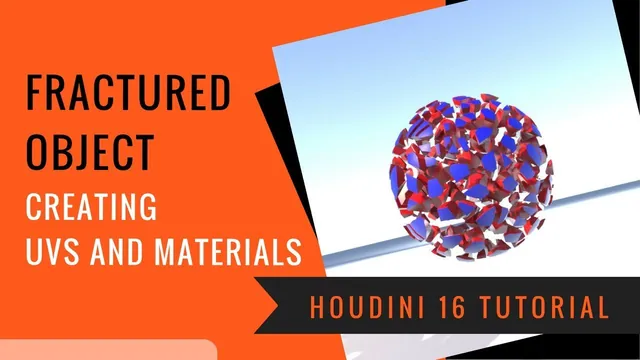
The strong color difference is a diagnostic aid. With the pieces separated, the original shell should be blue and the exposed fracture faces red. If one material covers everything, inspect the Material node’s group restriction before changing the shader. If a region has no intended assignment, check both the group name and the selected material path.
The lesson mentions that a texture can be connected to an appropriate material channel, but does not actually build or validate a texture-map setup. The demonstrated base colors prove that the assignments differ; they do not by themselves prove freedom from UV stretching or overlapping shells.
Verify the rendered result with a minimal scene
Material thumbnails may not update immediately. Around 08:02, the instructor uses the refresh control to regenerate the previews after changes. A stale palette thumbnail is not reliable evidence that a material edit failed.
Display the final downstream geometry, then create a Mantra output, a camera, and an environment light. The recording initially lacks both camera and lighting, so those are added before evaluating the render. Use a reduced resolution for this quick check; the lesson does not tune a final render-quality preset.
At 10:03, render the separated pieces and confirm that the interior and exterior retain their individual material properties. Keep the sequence of responsibilities clear when adapting the technique: map the original exterior, fracture the object, unwrap the new interior group, assign the two materials, and verify them on visibly exposed surfaces. The Exploded View is an inspection aid here; no destruction simulation or animated material transfer is demonstrated.