
Crowds & Simulation / Houdini & Procedural Workflows / Houdini
Unleash Colorful Chaos: Dynamic Confetti Blast in Houdini | CGI Nerd
Written guide
Playing loads YouTube content. YouTube processes data after activation.
Watch on YouTubeIf the player is blocked or unavailable, use Watch on YouTube.
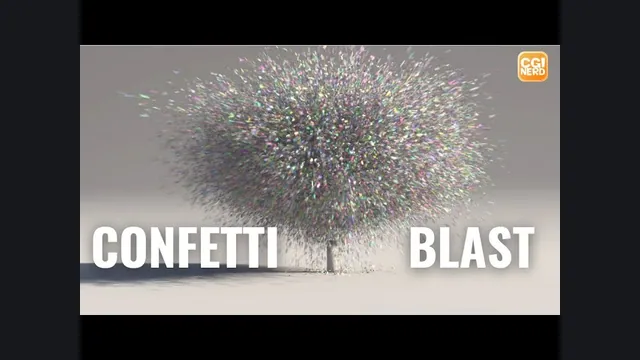
Create a short particle burst, copy small colored cards onto it and adjust the motion until it reads as a confetti popper. The lesson builds emission, gravity, ground contact, visual rotation and color as separate stages, then uses a flipbook to judge the result at playback speed.
The exact Houdini version is unverified. The particle and copying workflow is clearly described, but the rotation graph is an artistic experiment with incomplete wiring evidence and an angle-unit issue. The guide preserves that distinction rather than presenting the recorded quaternion graph as a validated rotation implementation.
Establish a burst with gravity and ground contact
At 00:00, create a geometry object for the confetti and a Circle source. Change its plane and reverse its facing for the intended launch direction, then connect it to a POP Network using the first context geometry as the source.
At 01:00, enable initial velocity and emphasize the upward component. Add Gravity Force below the particle solver so the launched particles return downward. Without that force, the initial velocity alone does not create the intended rising-and-falling arc.
At 02:01, increase velocity variation in X and Z to widen the burst. The instructor tries values around 5 in those directions and 3 for the other variation. These are scene-specific trials. First judge the overall spread with a small particle count; individual confetti geometry is not needed to establish the trajectory.
Add a ground plane through the simulation merge, with the ground connected in the order shown in the recording. The particles now bounce instead of falling indefinitely. Limit source activation to roughly the first five frames, then turn it off on the following frame so the effect becomes a burst rather than continuous emission.
At 03:00, adjust bounce on both the ground and POP Object. The instructor revises the values while looking for quick damping without immediate sticking. Observe more than the first impact: the desired result includes how the particles settle after repeated bounces.
Copy a small card only onto the particle points
At 04:01, create a low-resolution Grid for the confetti piece, initially about 0.1 × 0.1 in the scene’s units. Copy to Points takes that source geometry and the simulated points as separate inputs.
The initial simulation output also contains ground-plane geometry. At 05:00, insert a Blast to remove that ground contribution from the copying branch while retaining the particles. This is an important data check: points belonging to collision geometry can otherwise become unwanted copy targets.
The lesson optionally adds a small PolyExtrude thickness and enables the back face. Its precise extrusion value is not clear enough in the captions to reproduce as a fixed setting. The purpose is visible edges on the tiny cards, not additional simulation thickness.
At 06:00, adjust the source card’s alignment. Before custom rotation is added, the copies tend to share a velocity-related orientation and settle with an unwanted vertical appearance. Inspect the card’s own plane as well as the attributes on the destination points. SideFX’s copying attribute reference explains that v can supply the alignment axis when orient and N are absent; rot supplies an additional quaternion rotation.
The rigid card is copied onto a simulated point. The lesson does not simulate the corners or thickness of each individual paper piece colliding with the ground. A point contacting the plane therefore does not prove that every rotated card lies flat without intersection.
Understand the intended rotation layers and their limits
At 06:00, a Point VOP begins exporting a four-component rot attribute through Bind Export. A Quaternion node constructs a rotation from an axis and an angle. The first layer aims to give each particle a different starting rotation around one axis.
At 08:00, a random value derived from the point number is fitted from 0–1 to a spoken range of 0–360, then connected to the angle. This is not a verified degrees-based full-turn setup. SideFX’s Quaternion VOP documentation specifies an angle in radians and a normalized axis. A single full turn in radians is 2π; treating the recorded 360 as degrees without conversion misstates the node’s documented input.
At 09:02, another rotation layer uses velocity and randomness to make moving pieces rotate more visibly. The instructor adds axis variation by fitting random values into −1 to 1 and assembling three components into a vector. Around 13:02, identical random inputs are recognized as giving correlated X, Y and Z components. Different seed offsets are then introduced so the components do not all repeat the same value.
The recording also describes adding rotation results together. The captions do not expose enough socket-level detail to establish the exact final quaternion operation. Ordinary vector addition should not be assumed to compose rotations correctly; SideFX provides quaternion multiplication for multiplying quaternions. The recording does not demonstrate a documented normalization and composition audit, so this section describes the artistic intent rather than inventing a corrected complete graph.
At 15:01, a multiplier is moved after a Fit Range because its earlier placement does not provide the desired visible control. At 16:05, time or frame is introduced into the multiplication, with the stated aim that motion-dependent rotation disappears when velocity reaches zero. That is a procedural appearance rule, not evidence of accumulated physical angular momentum. It does not establish preservation of a piece’s last orientation as it stops.
For technical reuse, inspect angle units, normalized axes, quaternion composition and the transition to rest in the actual network. Those are the specific unresolved implementation checks, even though the source achieves a visually varied preview.
Choose the scale at which color varies
At 17:01, Attribute Randomize assigns color to the particle points before copying. The color then belongs to each copy, giving each piece a distinct identity.
The instructor compares that with randomizing points after Copy to Points. In the second arrangement, different points of the same card can receive different colors, producing a multicolored or shimmering appearance. Up close that may be attractive; from farther away the result appears muddier in the recording.
The selected approach keeps color before the copy so each piece reads more distinctly as confetti. The decision is about the level at which variation is applied: one target point per piece versus many points within each copied piece. It is not necessary to change the particle motion to compare those looks.
Increase density and refine air resistance after the motion works
At 18:01, the instructor raises the source count substantially, discussing values from 5,000 through 50,000 to 500,000. The spoken sequence is a series of density tests, not a reliable final particle-count prescription. Keep the count low enough to evaluate motion before committing to a denser simulation.
At 19:04, add POP Wind for air resistance. Its first effect is too strong, so launch velocity and resistance are adjusted together. More drag changes the trajectory already established, which is why the source revisits the launch settings afterward.
At 21:02, POP Spin is briefly tested and then removed because it produces unwanted behavior. It is not part of the accepted final setup. Further traction adjustment changes how the pieces settle, while the earlier rotation and card-contact limitations still apply.
At 22:03, create a flipbook. Interactive simulation speed is limited by the computer, so a captured sequence gives a better view of the burst’s actual timing. Inspect launch duration, spread, fall and settling together. The final result is a colorful confetti preview; a finished lighting and render setup is not demonstrated in this lesson.