
Maya & Python Scripting / Maya
Tab Layout UI
Written guide
Playing loads YouTube content. YouTube processes data after activation.
Watch on YouTubeIf the player is blocked or unavailable, use Watch on YouTube.
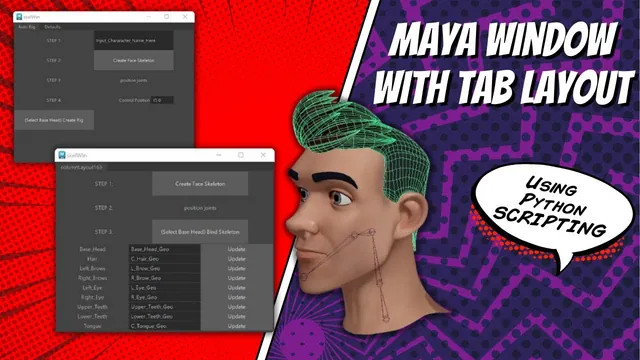
This lesson combines several developing Maya interfaces into one tabbed window. One tab holds the face-rig workflow and another holds default-selection controls. The central problem is layout parenting: controls appear under whichever layout is current when they are created, so moving code into helper functions does not automatically put it in the right tab.
The source starts with separate face-skeleton, selection and rigging interfaces from earlier lessons. It reorganizes their presentation without completing the connections between their underlying tools. Familiarity with Maya Python UI commands and nested layouts is assumed; the exact Maya release is not stated.
Extract interface builders without showing separate windows
During 00:00–05:00, the instructor moves the rigging controls and default-selection controls into separate functions. The outer window setup checks for an existing window, deletes that instance, creates the replacement and eventually displays it.
The display call is moved out of the helper function. This leaves the outer setup responsible for showing the assembled interface after its contents have been built. The helpers should contribute controls to the shared window rather than each trying to finish a separate window lifecycle.
The first attempt places the elements into an unintended arrangement. The source uses setParent to move up a layout level, showing that function boundaries and UI hierarchy boundaries are different things. A function can return while Maya’s current UI parent is still a layout it created.
Create sibling tab contents and label them
From 05:00–09:00, the script stores the tab-layout identifier and creates separate column layouts for the Rigging Steps and Defaults contents. Those column layouts are the containers associated with the tabs.
Before labels are configured, the visible tab can show a generated layout identifier. The instructor edits the existing tab layout using its stored identifier and the tabLabel flag, with a capital L. Each tab associates a child-layout identifier with its display label; the intended labels become Auto Rig and Defaults.
The recording retains two useful syntax corrections. The layout identifier and label in each pair are separated by a comma, not an assignment, and the nested parentheses must also close the outer command call. These syntax fixes make the statement valid, but they do not by themselves fix the hierarchy.
Balance every nested layout before returning to the tabs
During 08:00–10:02, the instructor identifies why the tab arrangement still fails. The helper functions create grid layouts, while the outer code creates column layouts. Moving up only once leaves the current parent inside one of those nested containers.
The repair accounts for each entered layout. After building a grid’s controls, the code moves out of that grid; after completing a tab’s column, it moves out of that column. The second tab must be created at the appropriate shared level, and the final edit must address the intended tab layout.
The resulting window shows both Auto Rig and Defaults. This is the main verification point: switch between the tabs and confirm that each contains its intended controls. If the second tab is absent or its controls appear inside the first, trace the current parent through the helper functions before changing widths or labels.
The lesson’s practical principle is to treat layout creation and leaving that layout as paired operations. Adding another nested row later creates another level that needs to be accounted for.
Arrange the rigging tab as an ordered workflow
From 10:02–16:00, the instructor brings in the character-name input and control-position input, then reorganizes the rigging tab into six intended stages: enter a character name, create the skeleton, position the joints, set the control position, select the base head and create the rig.
These labels describe the planned sequence, not proof that the complete tool already performs it. The earlier Bind Skeleton label is changed to Create Rig because binding is intended to happen within that broader stage.
Putting all the new elements directly into the existing grid makes some controls cramped or missing from the visible arrangement. The instructor introduces separate two-column rows for the input and its accompanying text. Each new row requires another move back to its parent after its contents are created.
At this point inspect both organization and usability: the stage order should be readable, each input should be identifiable, and the grid should have room for every intended element. A control that exists in the script but is cropped or misplaced still fails the interface’s purpose.
Resolve field cropping without treating widths as universal
During 16:00–21:05, the instructor experiments with row and field widths. Setting a row’s overall width does not immediately produce the desired result, and changing the field-group width can crop its contents.
The eventual adjustment uses the field group’s two-column width setting, described in the source as cw2, with 50 and 50 for this example. The instructor consults command help and notes that the setting applies to a group with exactly two columns. This is a correction at the child control’s level, not evidence that a single parent width will resize every nested element correctly.
Treat the numbers as the demonstration’s fit. Check the actual text and editable field in your interface rather than assuming those widths suit different labels, fonts or window sizes. Some earlier row-width experiments are abandoned without a resolved explanation.
Keep development actions and tool completion distinct
During 21:05–23:33, the Clear Scene button is moved toward the bottom. The instructor identifies it as a development aid, not an intended feature of the final tool. Its placement also depends on the current layout parent; the first move does not put it where expected.
The saved result is a workable two-tab arrangement with a clearer sequence of rigging controls. The source explicitly states that the Auto Rig startup is not yet working as one connected tool: default selections, skeleton code and rigging setup still need to be merged and connected in later work.
Verify this lesson on its actual scope. Reopen the window, confirm the two tab labels, inspect the controls and input widths, and trace their layout parents. Successful layout assembly does not establish successful character rigging.