
Maya & Python Scripting / Character FX & Animation / Maya / Python
Starting the Auto Rig UI | Maya Python Tutorial
Written guide
Playing loads YouTube content. YouTube processes data after activation.
Watch on YouTubeIf the player is blocked or unavailable, use Watch on YouTube.
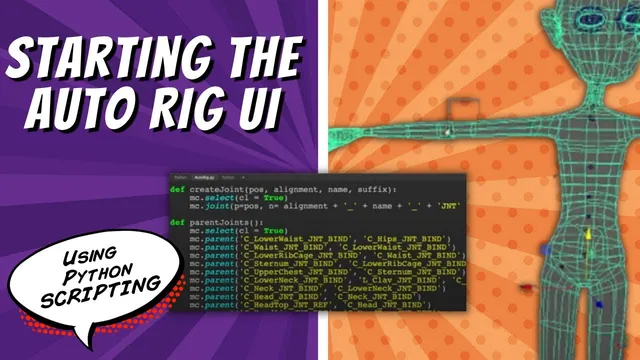
This lesson turns an existing Maya skeleton script into a two-stage interface. Create Skeleton makes the initial joints; the user can then adjust their positions; Create Rig runs the next operation. In this recording, that second operation parents the joints. It does not yet create a complete control rig.
The starting code already contains the skeleton-creation and parenting functions. You need those dependencies to reproduce the UI’s actions. The exact Maya version and full callback expressions are not reliably established by the captions.
Move execution behind a repeatable window
During 00:01–05:04, the instructor defines a UI function and comments out the previous direct calls. This prevents the main operations from running immediately when the interface code is executed.
The window uses one identifier for the existence check, deletion of an old instance, creation and showing. A syntax error in the first attempt is corrected, after which a window appears. A column layout supplies a place for the buttons.
The lifecycle check serves tool development: rerunning the script should rebuild the intended window. It is separate from the rig actions. Confirm that the window can be created and recreated before diagnosing why a button does or does not create joints.
The source uses a separate scene-clearing script while testing. That cleanup is a development convenience, not a demonstrated safe operation for a scene containing work you need to retain.
Connect the first button and preserve the editing stage
At approximately 05:04–08:02, the Create Skeleton button is added. It is visible before it does anything. The first command attempt does not trigger the function; adding the call parentheses in the demonstrated callback expression makes it create the joints.
The captions do not retain the surrounding callback syntax well enough for a complete replacement line of Python. The supported observation is that a button’s label and appearance do not prove that its action executes. Inspect the actual command expression on screen when following this step.
After the button works, the instructor moves individual joints. This is the reason for dividing the old script: the user needs an opportunity to fit the skeleton before the next function connects it. If both operations still run automatically at startup, that intended editing stage is lost.
Route the second button through a build function
Around 08:02, the Create Rig button calls a new wrapper function. At this point the wrapper runs only the existing parenting function, but it gives later rig-building operations one place to be called in order.
The first test creates joints, changes their positions and then parents them. An error appears while a user selection remains active. At approximately 10:03, the instructor adds a selection-clear operation, resets the test and repeats the sequence. The new run completes without the reported parenting error.
That is a concrete dependency to inspect: the build step should work on the objects intended by the script, rather than inheriting an accidental viewport selection. The video demonstrates the correction in this setup; it does not establish complete selection or error handling for arbitrary scenes.
Check the interface by its outcomes
Review the tool as a sequence. Open the window, create the initial joints, change a few positions and run Create Rig. Inspect whether the joints connect at the edited positions and whether the prior selection causes an error. Then rerun the UI function to check the window lifecycle separately.
The closing discussion proposes a future Delete Rig button and rebuild behavior. Neither is implemented here. The useful result is an interface that exposes two existing operations at the moments the user needs them, with a manual fitting stage in between. The button labels describe the developing project; they should not be mistaken for evidence that all rigging stages are already finished.