
Unreal Engine & Blueprints / Unreal Engine
Physics-Based Character Ball Movement | UE4 Tutorial
Legacy TutorialWritten guide
This tutorial is part of the CGI Nerd archive. Some software features, interfaces, or workflows may have changed since it was recorded.
Playing loads YouTube content. YouTube processes data after activation.
Watch on YouTubeIf the player is blocked or unavailable, use Watch on YouTube.
A rolling ball can serve as a controllable Pawn without using a walking-character movement system. This Unreal Engine 4 lesson builds that experiment from a sphere, camera, physics impulses, and input mappings. It reaches controllable rolling and jumping, but the jump logic also produces repeated impulses at walls and corners. Those failures remain part of the result, not a finished wall-jump feature.
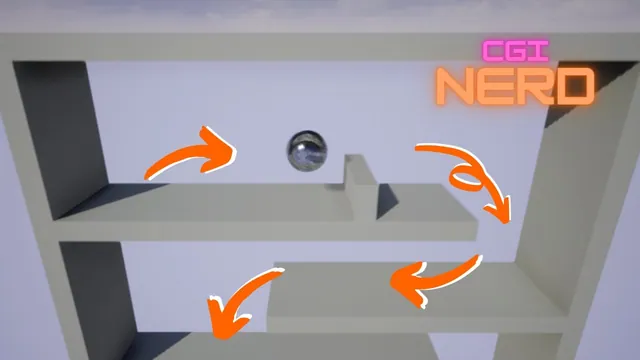
The starting level is a simple arrangement of box platforms, with Starter Content used for the sphere’s material. The title establishes UE4, but the exact release is not identified. The recording uses the legacy Project Settings axis mappings; it does not demonstrate an Enhanced Input implementation or a production-ready grounded-state system.
Build and possess the ball Pawn
At 00:01–05:00, the instructor creates a Pawn Blueprint and adds a sphere. A spring arm and camera provide the view, with arm distance, offset, and camera pitch adjusted to frame the ball and environment.
The sphere is promoted to the root of the Pawn’s component structure. The instructor initially looks for possession settings on the wrong component, then selects the Blueprint/Pawn itself and sets Auto Possess Player to Player 0. Play now uses the ball’s camera.
These steps establish an actor the local player can possess and a camera from which to view it. They do not create movement automatically. The first possession test correctly shows a camera change while movement and jumping remain absent.
Keep those checks separate: verify that play begins through the intended camera before diagnosing input or physics. A stationary ball seen through the correct camera may simply be waiting for movement logic, while an unrelated view suggests possession or camera setup still needs attention.
Apply angular impulse from a signed movement axis
During 05:00–08:01, a Move Side to Side axis mapping receives D and A with opposite signs. In the ball’s Event Graph, the axis value feeds the X component of Add Angular Impulse in Degrees, with Velocity Change enabled in the example.
The first attempt does not produce the expected motion because Simulate Physics has not been enabled on the sphere. After enabling it and compiling, the ball rotates—but the camera also rotates with the physics-driven object.
Angular impulse affects rotation. The resulting contact with the platform produces the rolling movement observed in this scene. This is a different control model from directly assigning a location or prescribing a constant movement speed.
Inspect the sphere targeted by the impulse and its simulation setting before increasing input values. A larger number cannot repair an impulse sent to the wrong component or a non-simulating body.
Stabilize the camera and tune movement by testing
At 08:01–12:02, enabling Use Pawn Control Rotation on the spring arm prevents the camera from spinning around with the sphere in the recorded setup. The instructor then reverses the input signs because D and A initially move opposite the intended screen directions.
The final sign choice belongs to this camera and rolling-axis arrangement. Test the visible direction in your scene rather than assuming the first positive/negative assignment is universally correct.
A Movement Speed float multiplies the axis value before it reaches the impulse. A trial of 100 spins the ball too quickly, while 15 gives the instructor a more controllable result. These are tested example values, not a guaranteed speed in world units.
The ball retains momentum. Reversing input first counters its existing motion, so a fast-moving ball takes longer to reverse. That observation is central to the desired physics feel: direction input adds rotational influence instead of instantly replacing velocity.
Add an upward impulse and observe repeated input
During 12:02–15:00, Spacebar is added as a Jump axis mapping. Its value is multiplied by a Jump Height variable and connected to the Z component of Add Impulse. The variable is corrected to a float, and Velocity Change is enabled for this operation too.
Despite its name, Jump Height is being used as an impulse multiplier; the graph does not calculate a target apex from a requested height. The initial example value of 100 is only a tuning attempt.
Holding Space exposes the first major problem: the axis continues supplying input, and the graph repeatedly adds upward impulse. The ball can rise far higher than the intended single jump. This is not solved merely by renaming the variable or reducing its value.
Distinguish the desired event—permission to launch once—from a continuously evaluated input value. The remainder of the lesson tries to add that permission state, but its final behavior still has important limitations.
Gate the jump and restore permission on a hit
At 15:00–21:02, a Can Jump Boolean is introduced with a default of true. A Branch checks it before the impulse, and the successful execution path sets it false afterward. Merely adding the variable initially has no effect until the Branch is connected.
The first gated tests then fail to jump as expected. Raising the impulse from 500 to 5,000 does not immediately resolve the problem. The instructor adds a hit event that sets Can Jump true again and enables Simulation Generates Hit Events on the sphere. With hit reporting active, jumping occurs; the oversized impulse is reduced to 500 for the subsequent tests.
Epic’s current hit-event reference confirms that physics-simulation hits require that reporting option. This is supplementary documentation, not evidence of the exact historical engine build or complete Blueprint wiring.
One additional diagnostic limit matters here. Epic’s Input Overview describes legacy axes as continuously polled even at zero. If the narrated path consumes Can Jump on an axis update with zero input, it can clear permission without an upward impulse. That is an editorial inference to investigate, not a defect independently reproduced from this Blueprint. The transcript does not establish a separate nonzero-input guard or a complete repair for that case.
Treat wall and corner launches as unresolved behavior
During 21:02–29:38, ordinary tests show that the ball cannot keep jumping in open air until it hits something. However, “something” includes walls and ceilings, not just suitable ground.
Holding input while the ball is pressed into a corner can repeatedly restore permission and add impulse. The instructor demonstrates unusually high launches, inconsistent wall climbing, and a jump triggered by contacting the underside or edge of another obstacle. These are consequences of the broad hit-based reset, not a verified intentional wall-jump design.
The level is adjusted with additional platforms and obstacles to explore the behavior. Those environmental changes help expose the issue but do not fix the state logic. A contained level can limit where the ball travels without making repeated impulses correct.
Near the end, the instructor proposes tagging ground and walls so the hit logic can distinguish them and allow a reset only for ground. That filtering is not implemented in this recording. No contact-normal test, robust grounded state, consistent wall-jump rule, or frame-rate comparison is demonstrated either.
Use the final experiment to inspect four separate outcomes: possession and camera framing, rolling direction and momentum, a single upward impulse, and permission reset after contact. The first two work in the demonstrated scene; the jump/reset interaction remains incomplete. The related random-platform lesson begins with a moving ball already available and develops the environment rather than repairing this controller.