
Character FX & Animation / Houdini & Procedural Workflows / Houdini
Modeling 3D Characters | Building a Base Mesh for a Character in Houdini 16
Legacy TutorialWritten guide
This tutorial is part of the CGI Nerd archive. Some software features, interfaces, or workflows may have changed since it was recorded.
Playing loads YouTube content. YouTube processes data after activation.
Watch on YouTubeIf the player is blocked or unavailable, use Watch on YouTube.
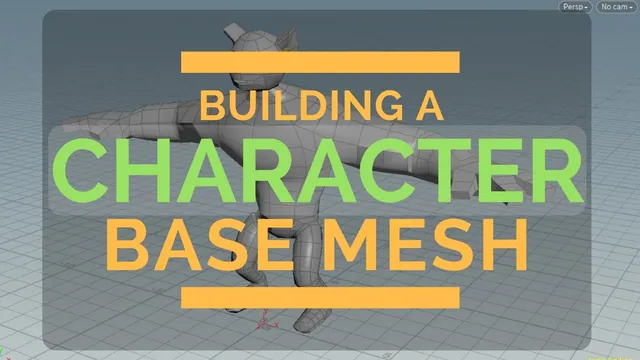
This Houdini 16 lesson builds a stylized character from simple primitives, joins the parts into a continuous form, adds basic hands and facial openings, and exports an OBJ for further sculpting. The character has a large chest and arms, relatively small legs, and two fingers plus a thumb on each hand. Those proportions are design choices for this character, rather than an anatomy template.
The workflow postpones small detail until the overall masses and connections are established. A Merge initially lets the separate pieces be viewed together; deleted faces, bridges, and selected point fusions later create their connections. The endpoint is a useful starting mesh for sculpting, not a rigged character or independently validated animation mesh.
Block the silhouette with a small set of reusable primitives
At 00:19, create a Sphere in Polygon Mesh mode with 8 rows and 8 columns. Keep the base sphere separate from its placement nodes. Transform branches named for the head, chest, and hips reuse that shape while giving each body mass its own proportions and position. Merge them to judge their relationships in one view.
The instructor enlarges the chest, moves the hips below it, and adjusts their angles. At this stage, a recognizable balance of masses matters more than surface detail. Check from more than one perspective: several placements that seem acceptable from the first view are corrected after rotating the camera.
Create a polygonal Tube for the limbs, with an example 4 rows and 8 columns and different radii at its ends. Transform branches produce the upper leg, lower leg, foot, upper arm, and forearm. Work on one side so it can later be mirrored. When a newly duplicated part is missing from the preview, check that its output was connected to the Merge; the lower leg and arm setup both make this dependency apparent.
The legs and feet are moved backward as the instructor evaluates balance. The arm is adjusted toward a pose closer to a T-pose, while retaining a slight downward angle. These are interactive proportion decisions, so the source does not establish a single numeric transform recipe. Follow the silhouette and joint locations rather than attempting to infer exact unseen coordinates.
Plan the hand and body openings around matching boundaries
From 13:37, use a Box for the palm. Scale and rotate it to meet the forearm, then switch it to Polygon Mesh. The instructor tests the divisions and chooses a layout that can provide an eight-edge opening when the appropriate faces are removed. That matches the intended connection to the eight-sided limb construction.
Do not build fingers yet. The palm only needs enough geometry for the planned two fingers and thumb, plus the wrist connection. This keeps the first task manageable: establish where parts meet before adding protrusions that complicate selection.
Around 16:59, switch to primitive selection and delete the surfaces at the intended joins. Houdini creates Blast nodes for these deletions. Begin with the central body, then open the limb connections. The goal is two open boundaries that can be bridged, not overlapping closed primitives that merely look connected from outside.
The eight-edge count is specific to the selected faces in this model. The lesson demonstrates deleting four faces in several attachment regions to obtain the desired boundary. Count the exposed edges in your own mesh; a different subdivision or selection can produce a different loop even when the hole looks similar in the viewport.
Bridge the body and repair twisted correspondence
At 18:02, invoke the Bridge tool, select the source boundary, confirm it, then select the destination boundary and confirm again. The instructor double-clicks an edge to select the perimeter of an opening. Repeat this for the central body and straightforward limb connections.
Reduce the bridge divisions to keep the mesh light. The recording tests different segment counts and straight connections according to the space being joined; the abdomen retains more structure than some short connections. Enough geometry to shape the transition is useful, but dense bridging is not a substitute for sensible boundary placement.
Connect the shoulder, wrist, and hip after opening their attachment regions. The hand bridge twists even though the boundary counts are compatible. Use Default Pairing Shift to change which source edge corresponds to which destination edge. A bridge can be connected yet still have a poor twist, so inspect the strips between both loops rather than checking only that the hole is filled.
Before the hip bridge, the instructor rotates part of the attachment area toward the thigh. Pairing Shift is then used there as well to improve the correspondence. These solve different problems: moving the opening improves its physical alignment, while shifting the pairing changes how the boundary vertices connect.
A useful checkpoint is to display the mesh without relying on the original overlapping masses. Follow the transitions around the torso and limbs and look for stretched, twisted, or unexpectedly crossed strips. The recording corrects several visible connections but does not perform a comprehensive topology or deformation audit.
Close the foot and replace the primitive pole regions
Around 24:00, the foot still has an open end. The demonstrated approach bridges selected opposing boundary portions, then selects the resulting points and uses Fuse. Increase the fuse distance only enough for the intended pairs to join. The instructor retries this operation after an unsuccessful adjustment; the intended result is a closed foot, not the indiscriminate merging of nearby geometry.
The bottom body region and top of the head contain triangular pole areas inherited from the primitive construction. The instructor prefers four-sided faces for this base mesh. Delete the unwanted region, bridge across the opening with a small number of segments, and fuse selected points to complete the replacement.
These operations initially leave a pointed head shape and other rough transitions. Connection and shape are separate checks: first verify that the intended region closes, then move its points to improve the silhouette. The lesson does not establish that all triangles have been removed everywhere or that the result is ready for facial animation.
A temporary Mirror preview around 28:00 helps evaluate the full character. The instructor removes that preview to continue working on the original side, then uses mirroring again later during the face work. Treat mirroring here as a modeling and proportion aid; the narration does not fully specify a final seam-validation procedure.
Form the fingers and smooth the joined masses
From 29:02, separate the thumb’s starting area from the finger area. Shape its base so it emerges outward and somewhat downward, then extrude and reposition the new faces. Curve the palm and adjust the edges where the two fingers will begin.
For the fingers, select the relevant faces and change PolyExtrude from connected components to individual elements. The two selected regions can then extrude separately instead of becoming one shared projection. Add further extrusions and small insets to establish the finger forms. The example remains deliberately simple; it does not add fingernails, detailed joints, or tested deformation loops.
Around 33:47, add a Sculpt node for broader refinement. The brush initially deforms points; switch it to Smooth Points to soften rough transitions around the joined areas, including the elbow, arm, and neck. Use Deform Points when the intention is to pull out a shoulder form. Brush smoothing and direct point movement solve different problems, so verify the active mode before making a stroke.
When correcting the pointed head around 37:01, the manipulator is aligned to the component rather than the world. Changing Handle Alignment to World allows a point to move straight down in the intended direction. This explains a common apparent modeling problem: the selected point can be correct while the handle’s coordinate frame is wrong for the desired move.
Continue alternating direct edits and smoothing to refine the body. The instructor explicitly leaves further shaping for sculpting, so the acceptance check at this stage is a coherent base silhouette with usable connections, not finished anatomy.
Establish the face openings and export the base mesh
With a mirrored preview available, the face work starts around 40:03. Selected faces are extruded individually for the basic eye regions. The jaw is shaped with point edits, and additional PolyExtrude operations establish the initial facial structure. These are starting forms for later sculpting rather than a complete system of deformation-ready facial loops.
The mouth is developed through repeated extrusion, inset, scaling, and movement. Around 44:02, switch to wireframe to see inside and turn the emerging throat downward. Continue it far enough that its end will not be plainly visible through the open mouth in the intended view. This constructs interior depth; it does not add a tongue, teeth, or a complete anatomical mouth.
For the ears, extrude side faces outward and shape the boundary. Insetting eventually encounters overlapping edges. Instead of forcing the inset farther, the instructor adjusts points, scales the region, and continues with an inward extrusion. Inspect the shape from several angles while doing this. The source demonstrates a workable rough ear, not a general solution to all self-intersections.
At 49:01, connect a File node after the finished base geometry and choose an output path with an .obj extension. The node initially reports that it cannot find the file because it is in Read mode. Switch to Write Files to create the export, then return it to Read Files to read the result that was just written. This readback is a useful distinction from assuming that typing an output path automatically saved the mesh.
The lesson closes with the base mesh ready to take into a sculpting workflow. Preserve the Houdini scene as well as the exported mesh if following along: the scene contains the primitive, edit, bridge, and refinement history, while the OBJ is the resulting geometry. The subsequent sculpt is outside this recording, so no unseen sculpting, UV, rigging, or animation steps are implied by this handoff.