
Character FX & Animation / Maya
Making the Face Control User-Friendly
Written guide
Playing loads YouTube content. YouTube processes data after activation.
Watch on YouTubeIf the player is blocked or unavailable, use Watch on YouTube.
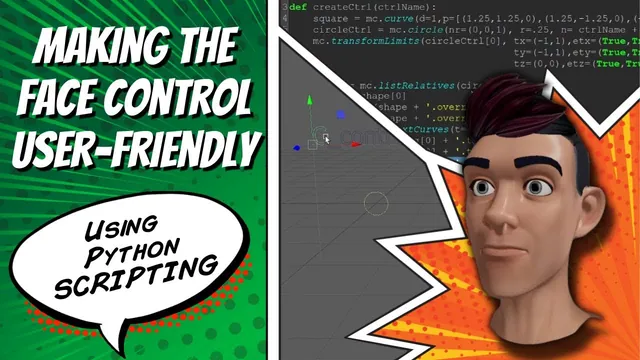
A face-control widget should make its intended interaction obvious. In the starting version, the movable circle resembles its surrounding frame, the frame can be selected accidentally, and there is no readable label. This lesson improves those details, then solves a more subtle problem: moving the whole widget must not fight the control’s local movement limits.
The result is a named, colored, labeled widget with separate display and animation roles. It remains a standalone building block; integration into the larger face rig and more flexible naming are deferred. The exact Maya release is not established by the recording.
Give the frame and control distinct identities
At 00:00–04:01, the instructor adds a control-name argument to the builder and uses it to construct different names for the frame and movable control. A frame prefix identifies the boundary, while a control suffix identifies the animator-facing curve.
The argument is called ctrlName rather than simply name to keep its role distinguishable from command flags also named name. The point is readable code, not a language restriction on the shorter variable name.
Test the generated names in the scene before adding later operations. Drawing overrides, text labels, grouping, and constraints all need reliable references to the objects just created. Two objects that look different in the viewport can still be addressed incorrectly if a copied name expression points to the wrong one.
The early tests use simple placeholder names. They demonstrate that the function accepts different names, but do not establish a general policy for collisions with existing scene objects.
Apply a drawing override to the control’s shape
During 04:01–09:00, the script queries the circle’s relatives and inspects the result to find its curve shape. In this simple widget, the relevant result is the first item in the returned list. The lesson stores that item before appending attribute names to it.
The override requires two settings: enable the drawing override, then choose its color. An omitted dot in the constructed attribute path causes one error; reversing the words in overrideColor causes another. These are string/attribute lookup problems, separate from whether the chosen color index is suitable.
The instructor tests the indexed colors and uses seventeen for the yellow shown in the recording. The circle now stands out from the frame. Deselect it when checking the result so selection highlighting does not obscure the intended display color.
This first-item lookup is demonstrated on a known, simple curve hierarchy. It is not a complete resolver for controls containing multiple curve shapes, intermediate shapes, or additional children. Inspect the returned list before adapting the approach to a more complex control asset.
Build and position the readable name tag
At 09:00–14:02, textCurves creates a label from the control-name variable. The return value is printed and shown to contain more than one item. Attempting to concatenate that entire list with an attribute suffix produces an error; indexing the appropriate returned item supplies the object name needed for the transform operations.
The text is placed toward the upper-left area of the widget and adjusted to account for the frame’s size. Its scale is reduced consistently on X, Y, and Z. The instructor tests another control name to judge whether the label remains readable at that size.
Keep the visible text and its scene-node identifier conceptually separate. The text tells the user what the control represents. The generated node name lets the script position and organize the label. The lesson inspects the generated naming, including a suffix, but does not establish that the same name-construction shortcut is portable across every text-curve setup.
The immediate verification is visual: the label should be legible, should not overlap the control’s working region, and should remain clearly associated with its frame.
Template the display elements while leaving the control usable
During 14:02–16:01, the frame is set to template display so it cannot be selected through the ordinary viewport interaction demonstrated. The label and frame are organized together as display elements.
The hierarchy matters because template behavior affects descendants. Putting the movable circle beneath the templated frame would also make the intended animation control unavailable. The circle therefore needs a separate branch from the templated display geometry.
Test selectability directly: the user should be able to select and move the circle, while the frame and label serve as guides. A tidy Outliner is not sufficient if the hierarchy makes the actual control difficult or impossible to use.
The lesson then addresses how these separate branches can still travel together when the widget is repositioned.
Move an unrestricted parent instead of fighting local limits
At 16:01–20:01, a direct parent constraint is tried between the display frame and the limited control. It follows only partway, because the control’s existing movement limits prevent the larger translation needed to reposition the complete widget.
The correction adds a group above the movable control and constrains that group instead. The parent carries the widget’s placement and orientation; the child retains its limited animation movement relative to that parent. In the recorded test, the complete widget can now move and rotate while the circle stays within its intended local working region.
This separates two coordinate-space responsibilities. Layout asks where the whole interface element belongs. Animation input asks how far the circle has moved inside that element. Applying both responsibilities to the same limited transform caused the conflict.
The script creates a named zero group around the circle and uses the frame as the constraint target for that group. The lesson inspects the manual constraint command while implementing the scripted version. Verify the target and constrained object explicitly; a reversed relationship would move the display element in response to the animation control instead of establishing the intended placement relationship.
Choose and test the final grouping relationship
During 20:01–23:24, the frame/display branch and the circle’s group are placed beneath a main group. Moving that main group carries the entire widget in the demonstrated test, while the child circle remains independently usable.
The instructor considers removing the extra constraint because a shared main group already moves both branches together. Both arrangements are tested. The constraint is retained in the final demonstrated version so that moving the frame directly also carries the control group, while the instructor acknowledges that the extra relationship adds another possible failure point.
That is a specific design tradeoff, not proof that more constraints always make a control safer. Test the operations your interface actually permits: moving the main group, moving the frame through the hierarchy, rotating the widget, and moving the circle within its limits. Confirm that the label follows, the display remains templated, and the animation control stays selectable.
The completed widget is more understandable and easier to place. It does not yet include facial attributes or expression connections. Those later stages can use the clearer names and separated hierarchy established here.