
Houdini & Procedural Workflows / Houdini
How to Model Dice in 3D | Houdni Tutorial
Written guide
Playing loads YouTube content. YouTube processes data after activation.
Watch on YouTubeIf the player is blocked or unavailable, use Watch on YouTube.
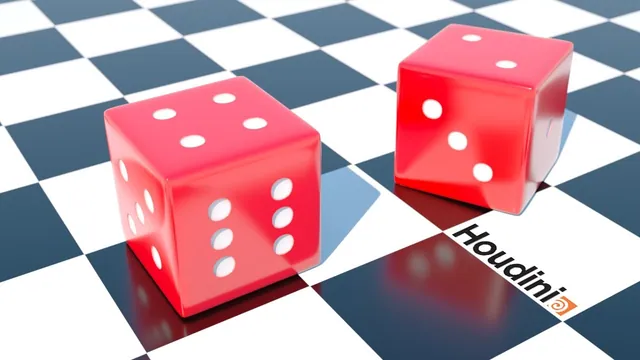
Build a single die from a subdivided box, using inset faces for the pips, shallow extrusions for their recesses and a bevel around the outside. This Houdini lesson also shows why the groups used to color an extrusion matter after subdivision: coloring the recess walls produces a wider white region than coloring only their inner faces.
The recording finishes with a simple Principled Shader and Mantra preview. Its exact Houdini version is unverified. The numerical modeling values below belong to the example’s box scale; the lesson does not establish them as dimensions for a physically manufactured die.
Lay out the pips on a polygon box
At 01:00, enter the Box object’s geometry network, switch the box to Polygon Mesh and set the subdivision-axis values to 6, 6 and 6. These controls provide the face layout used to select the pips. Do not confuse the parameter values with a separately specified number of visible cells on each side.
Switch to face selection and choose the small polygons corresponding to the six pip arrangements. The demonstrated opposite pairs are four and three, one and six, and two and five. Before extruding, orbit the box and count the selections on each side. A correct total selection count alone would not prove that the pips are arranged correctly.
The six-pip side introduces a selection problem: some selected polygons touch along their longer sides. The instructor removes two of those faces from the initial selection so they can be inset separately. Shift adds to the selection and Control subtracts in the demonstrated selection mode.
At 03:01, extrude the initial selection with an inset of 0.02, then select the two deferred faces and give them the same 0.02 inset in another extrusion. This staged selection is part of the demonstrated solution. Applying an undifferentiated region inset to all adjacent polygons is not the sequence shown.
Add a narrow rim and recess the centers
At 04:03, select all the inset pip-center faces around the die. Add another extrusion with an inset of 0.005. This smaller inset creates an additional narrow region around each pip, giving the later subdivision a crisper boundary to work with.
At 05:08, extrude again and move the selected faces inward by −0.02. The result is still angular, but it should already read as a box with recessed pips. Inspect each side now: every intended pip should have a separate opening, the centers should go inward, and none of the deferred selections should be missing.
Keep the roles of these operations distinct. The first inset establishes each pip’s footprint, the second creates the narrow surrounding rim, and the final negative extrusion provides depth. If a recess is too wide, changing depth alone will not repair its outline.
Use extrusion groups to control the pip color
Add a Color node that makes the entire die red, then a second Color node for the white pip regions. At 06:03, return to the recess extrusion and enable its front and side output groups. Assign those groups to the second Color node.
The instructor temporarily toggles Output Front and Output Sides to see which polygons those names refer to. Use this as an inspection technique, then restore the required geometry. Generating a group and removing a category of output geometry are different actions; the color assignment needs the faces to remain present.
This first color pass includes both the inner faces and the walls of the recesses. It is intentionally revisited after smoothing, when the visual effect of that choice becomes easier to judge. The final white selection is narrower than this initial assignment.
Bevel the silhouette and inspect the subdivided result
At 07:01, switch to edge selection. Hold Shift to extend the selection and double-click the long outside edges to collect them around the box. Apply PolyBevel and adjust its distance and softness while checking the silhouette. The captions do not provide a final bevel distance, so use the displayed shape as the reference.
At 08:01, add Subdivide. The example accepts depth three and explicitly notes that this produces a high-polygon result. Turn off the distracting wire overlay to judge the surface, while retaining the ability to inspect the underlying cage when needed.
The first smoothed result has too much white bleeding around the recesses. At 09:10, remove the extrusion-side group from the second Color node, leaving the front group assigned. The white then stays farther inside the holes, resembling painted pip centers. This correction changes the color selection; it does not undo the recess walls or solve the issue by deepening every pip.
Check both form and color after subdivision. The outer corners should be softened, the recessed pips should remain distinct, and the white should occupy the intended region rather than spreading across the surrounding red surface.
Make a simple material and render check
Create a Principled Shader and leave its surface color white with the point-color option enabled. In this setup, the white shader color allows the red and white geometry colors to remain visible rather than tinting them with another color multiplier.
At 10:02, return to object level and move the die onto a ground grid. Scale the grid, add an environment light and create a camera from the chosen view. At 11:04, render the scene in Mantra to inspect the finished appearance.
The delivered result is a modeled and colored die in a basic scene. The lesson does not add UV textures, a rigid-body simulation or production optimization. Its useful checks are immediate: correct opposite pip pairs, separate recessed centers, a softened box silhouette and a color assignment that still reads clearly after smoothing and rendering.