
Houdini & Procedural Workflows / Houdini
How to Make Plants in 3D | Houdini Tutorial
Written guide
Playing loads YouTube content. YouTube processes data after activation.
Watch on YouTubeIf the player is blocked or unavailable, use Watch on YouTube.
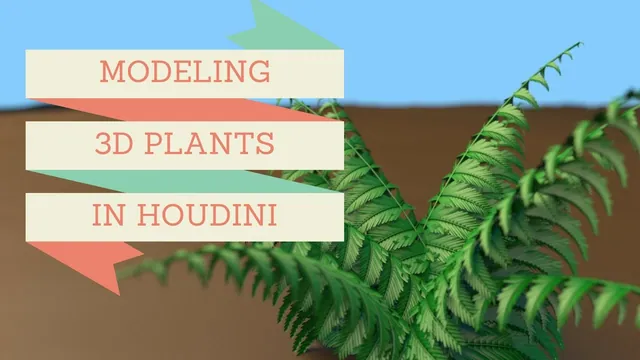
A fern can be assembled at several scales: a shaped blade repeats along a small stem, that assembly repeats along a larger branch, and completed branches spread around the base of the plant. This Houdini 16 lesson builds that hierarchy with curves, Copy Stamp, color-driven scale, and per-copy variation. Changing an upstream blade or curve then changes the larger plant assembled from it.
This is a procedural modeling exercise with a simple green render. It does not build a botanical growth simulation or a finished textured asset. The recording deliberately uses the older Point node and the historical Copy Stamp workflow; its node names and local variables belong to that context.
Shape one blade and establish its attachment point
At 00:11, create a Grid inside a Geometry object and reduce its rows and columns to 5 each. Edit points to establish a tapered blade, including a narrower end that will connect to the stem. Work on the silhouette before adding copies: a weak source shape will be repeated many times.
Beginning around 02:28, use Bend nodes to give the flat surface curvature. One bends across part of the blade, another works from the opposite direction, and a third bends along its overall length. The recording adjusts capture directions and lengths rather than accepting the default gizmos. For the original 10-unit grid, the long Bend is positioned back by 5 units to start near the blade base.
The important check is which region each deformer captures. If duplicating a Bend simply doubles the same deformation, change its direction and capture region before adding more angle. The example’s small mesh is intentionally economical, so inspect the resulting outline as well as the visible surface curvature.
The attachment position is refined later during copying. The original edited blade is moved so its base sits at the source origin; a second adjustment corrects an overshoot. That source placement determines where each copied blade meets its destination point. Moving the blade’s points is therefore part of establishing the reusable component, not just cosmetic cleanup after copying.
Prepare a curved stem with distribution and orientation data
Create a Line around 05:00 and add a Bend. An initial two-point line can only connect its endpoints with a straight segment, so increase it to 20 points to give the deformation intermediate positions. The recording also encounters a Bend handle problem when the capture direction points exactly upward. Adding a tiny off-axis component, about 0.001, restores the controls in that scene. This is a recorded workaround with an unexplained cause, not a general requirement for all Bend nodes.
Add the older Point node, explicitly identified in the Houdini 16 demonstration. Disable Bend falloff visualization so its display colors do not obscure the values being built. Use the Point node to create a red-channel gradient based on point number divided by point count, described as $PT / $NPT.
The narration calls this a zero-to-one range, but with 20 sequentially numbered points the indices are 0 through 19: division by 20 reaches 0.95 at the last point. This matters when interpreting the later taper. The demonstrated expression supplies an increasing normalized progression; it does not reach exactly one at the tip. No endpoint correction is demonstrated.
The Point node also creates edge-direction data through its Edge Force settings. In an Attribute VOP, add a Bind named edge_dir, set its type to three-float vector, and connect that direction to the normal output, N. The type is important: orientation requires a direction with multiple components, rather than a single scalar value.
The curve now carries three useful things: positions for copies, a red-channel progression for sizing them, and directions for orienting them. Inspect those separately before building the next level. A curve may look correctly bent while still lacking the attributes expected by the copy operation.
Copy and taper blades on both sides
From 11:40, feed the blade into Copy Stamp’s geometry input and the prepared curve into its template input. The instructor notes that older Houdini releases may label this node simply Copy. The first result is misoriented. Disabling Transform Cumulative allows the demonstrated rotation adjustments to produce the intended arrangement.
Correct the blade’s source attachment point, then use the template red value, $CR, in the copy’s uniform scale. Directly using the gradient makes the blades get larger toward the end, so the lesson remaps it with fit01 to reverse the scale progression. The first reversed range is 1 to 0; it is then narrowed, with values around 0.5 and 0.1 used to improve the proportions.
These numbers are shape choices for the example. The dependency is more important than any particular endpoint: increasing distance along the stem should produce the desired taper. Because the source gradient does not quite reach one, the actual final blade does not necessarily attain the range’s nominal end scale.
An additional Transform helps seat the blades against the stem. Duplicate the copying branch, rotate it to the opposite side, and merge the two results. Use the same underlying line with PolyWire to create visible stem thickness, then merge that into the leaf assembly. The instructor keeps the stem’s radial divisions modest because it will be small in the finished plant.
Check the attachment on both sides. The recording notices separation during early rotation tests and adjusts the component placement; it does not prove that all intersections remain perfect under arbitrary future rotations.
Add length variation without duplicating the same pattern
At 21:03, the lesson introduces stamping to vary a Transform upstream of each Copy Stamp. The Transform’s relevant scale component reads a stamp variable called L, with a fallback of 1. The controlling copy node enables Stamp Inputs and defines L using a point-seeded random value remapped into an example range of 0.7 to 1.
The relationship is circular in appearance but intentional in this historical workflow: while generating a copy, Copy Stamp supplies a value that the upstream Transform reads for that particular copy. The controlling node path, variable name, and enabled stamping option must agree. A fallback of 1 keeps the source at its ordinary scale when the value is unavailable, but can also make a broken reference look deceptively normal.
The second side initially shows no change because its Transform refers to the wrong copy node. Around 26:00, correcting that node reference restores variation. Verify the target path before changing random ranges or rebuilding the geometry. The automatic captions distort several function names and punctuation, so the supported lesson is this dependency and repair; the article does not invent a paste-ready expression for unknown node names.
After both sides work, they still look mirrored because the random calculations use the same point-number seed. Multiplying the seed input on one side by a different value changes the pattern. This separates two controls that are easy to confuse: the remapped range limits the amount of variation, while the seed changes which blade receives which value.
Repeat the assembly along a larger branch
From 28:02, duplicate the line, Bend, gradient, and direction-preparation structure to create the next level. A length of 50 is tested and then reduced to about 30. The capture region is adjusted as the branch dimensions change. Reusing the network also carries over the red gradient and direction-to-normal connection needed for copying.
Use another Copy Stamp to distribute the completed smaller assembly along this branch. Disable cumulative transformation as before, adjust the source orientation with a Transform, and apply the reversed red-channel scale progression to make the assemblies taper toward the branch end. The first distribution is too crowded; the instructor reduces the destination count and later chooses 15 points as a compromise.
Create a PolyWire from the larger branch and merge it with the repeated foliage. Then add the same kind of upstream length stamping, this time with a demonstrated range around 0.8 to 1. The source includes a spelling correction to the stamp function. Duplicate the copying side, change its controlling node reference, give it a different seed multiplier, and rotate it across to complete the larger frond.
Inspect this hierarchy one level at a time. If the whole frond is wrong, display the smaller leaf assembly first, then its destination curve, and finally the larger copy. This follows the recording’s construction and helps distinguish a malformed source from an incorrect placement or scale calculation.
Arrange the plant and check the rendered surfaces
Around 39:08, create a polygonal Circle to supply destinations for completed fronds. The example uses 12 divisions and tests a radius around 3. Another Copy Stamp places the frond at those points. Position alone does not provide the desired final orientation, so the instructor works through several rotation and Transform adjustments.
Point number multiplied by a large value is used for variation around the plant, and a fitted random value controls another angle. These are artistic distribution experiments, not an established formula for evenly spaced radial directions. Several attempted angle ranges are rejected or reversed. The transcript does not establish every final axis and rotation value, so match the observed outward-spreading shape while inspecting each rotation independently.
After adjusting width, curves, and seeds, add a Color node for a darker green appearance. Near 47:00, the initial surface display is improved by adding a Facet node with normal computation enabled. This is a shading correction after the earlier orientation work: normals used to guide copying and normals needed for the final surface appearance serve different purposes in the construction.
Create a camera and inspect a render. The demonstrated endpoint is a recognizable, procedurally assembled fern whose overall form can still be changed through the source blades, curves, counts, and seeds. Material variation, UVs, wind animation, export, and optimization for a game engine remain outside this lesson. Its reusable contribution is the layered assembly and the checks that keep source shape, template attributes, stamping, and final shading from being confused with one another.