
Houdini & Procedural Workflows / Houdini / Unreal Engine
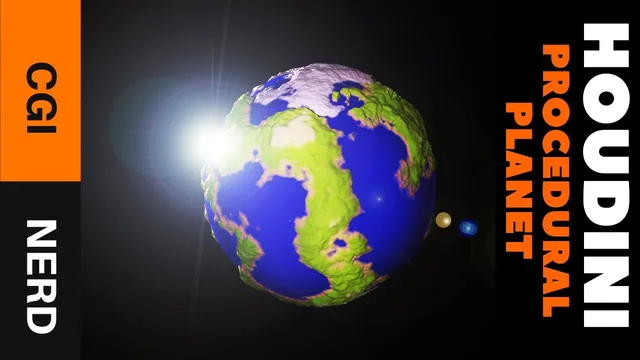
How to Make a 3D Planet | Houdini Tutorial
Written guide
Playing loads YouTube content. YouTube processes data after activation.
Watch on YouTubeIf the player is blocked or unavailable, use Watch on YouTube.
This lesson creates a stylized planet in Houdini, bakes its color and surface detail onto a simpler mesh, and imports the result into Unreal Engine. The planet combines two different patterns: position-based noise for continents and UV-based masking for polar caps. The export section then changes the low-resolution mesh when a smooth sphere cannot represent the strongly raised landforms well enough.
The recording uses SideFX Labs Maps Baker and Quick Material, followed by FBX export. Exact Houdini, Labs, and Unreal Engine releases are unverified. The resulting asset is demonstrated in the source’s game-engine scene; that does not establish a universal export preset or a particular performance budget.
Prepare separate low- and high-detail branches
From 00:30, create a Sphere named Planet and set its radius to 30 for the example’s intended scale in Unreal. Switch to a polygon representation and start with a comparatively low frequency of six. Add UV Project, reset its rotation as shown, and choose Polar projection.
Duplicate the setup for the high-detail source and raise the sphere frequency to about 300. Switch to smooth shading to inspect the surface without the dense wireframe distracting from the procedural pattern. The instructor also changes the UV projection’s attribute class from vertices to points for this particular VOP workflow.
Keep the two roles clear. The dense source will carry the displacement and color information. The simpler branch is initially the proposed delivery mesh, but the lesson later rebuilds it to follow the raised continents more closely.
Use noise to coordinate continent color and elevation
Around 03:03, create an Attribute VOP and feed position P into Turbulent Noise. Connect the result to color first so the distribution is visible before adding displacement. The instructor chooses a zero-centered Perlin-style noise and lowers its frequency to roughly 0.1, then changes the offset to find a useful continent arrangement.
Add a Ramp Parameter for planet colors. Blue represents water, green represents land, and a lighter brown transition suggests beaches. Fit Range adjusts how the noise occupies the ramp, giving control over the relative areas of these regions. Later, white is added near the highest values to suggest snowy peaks.
From 06:01, connect the pattern to Displace Along Normal and output the displaced position. A strong displacement amount, tested at 10, produces mountains but also makes the water bumpy when driven directly by the raw noise.
The instructor corrects this by feeding the remapped result into displacement instead. The low portion of the pattern is held at black rather than continuing into negative displacement values. The resulting distinction is useful for this stylized look: raised terrain sits above a comparatively smooth water region.
Inspect both the color boundaries and the silhouette. A pleasing continent color pattern does not automatically mean the geometry has the intended height relationship.
Build polar caps from the vertical UV coordinate
At 08:01, extract the vertical component of uv with Vector to Float. The first connection accidentally uses life rather than uv, so the expected vertical gradient does not appear. The instructor breaks the incorrect connection and checks the UV data directly through color before continuing.
That temporary visualization is an effective diagnostic. Before tuning a mask ramp, confirm that the input actually varies in the direction you expect. A ramp cannot repair a connection to the wrong attribute.
Create another Ramp Parameter, named for defining the poles, and make its ends white with a darker middle region. This creates top and bottom polar masks whose coverage can be adjusted independently through the ramp positions.
From 11:00, add noise to break up the otherwise regular cap boundaries. The recording uses a three-component noise in this part of the graph and combines it with the coordinate information before judging the resulting mask. Reduce the frequency until the boundary variation has a useful scale, then tighten the ramp to reduce excessive polar coverage.
The automatic captions do not capture every wire in this coordinate-and-mask combination. The supported construction is the progression from a vertical UV mask to a noisy, adjustable polar boundary; consult the graph view for the precise connection order rather than inferring an executable network from the spoken fragments alone.
Combine polar color and height without excessive overlap
Around 14:01, subtract the polar mask from the existing continent-color contribution so the poles do not simply inherit the same land colors. Add the polar contribution back into the displacement-related branch so the caps still have raised form.
The first result is too tall. Additional Fit Range adjustments reduce that height and sharpen the transition. The instructor then adjusts source-minimum values, using approximately 0.2 in the shown trials, to create more separation between the polar regions and neighboring landmasses.
Inspect the color and displacement paths separately while making these changes. The intended result is a cap that reads as its own region, with controlled elevation and a useful boundary, rather than a tall spike or an unwanted overlap with the continental palette. The exact final fit settings are not completely narrated, so these are visual checkpoints rather than a universal numeric preset.
Bake color and normals, then inspect the proposed delivery mesh
From 19:01, prepare the SideFX Labs tools. The first attempt to add the baking setup crashes, and the instructor resumes from the saved scene. The recording describes enabling or updating the Labs toolset and restarting Houdini; those are historical setup remarks, not a verified instruction to install a particular current build.
Connect the low-detail geometry to Maps Baker’s first input and the high-detail source to its second input. Choose an output location and retain the channel token in the filename so different baked outputs receive separate names. The example uses JPEG output and selects normal and vertex-color maps, leaving other maps such as ambient occlusion disabled.
After baking, use Labs Quick Material to preview the color and normal textures on the delivery mesh. The first result has difficulty representing the high peaks, which stand far away from the original low-detail sphere.
This motivates a geometry change rather than endless material adjustment. A normal map changes the apparent surface direction used for shading; it does not make a smooth sphere’s outline extend into the same silhouette as large displaced mountains. The source therefore rebuilds a lower-detail surface that follows the actual landform shape more closely.
Rebuild the low-detail surface and correct its UV projection
Around 23:01, branch from the displaced planet into IsoOffset, then Convert Volume to obtain a new polygon surface. The initial sampling is coarse. The instructor compares sampling values of 50 and 100; the denser version reaches roughly 30,000 primitives, so the lower setting is reconsidered for the intended asset.
Apply Smooth before quadrangulating the surface. The recording compares the bumpy and smoothed results, then reports approximately 6,000 polygons after the chosen operations. These figures describe the example, not a requirement for every planet or target platform.
Add UV Project to this new mesh and use it as the low-detail input to the baker. The first preview after baking looks wrong. At 26:01, the instructor finds that this new UV Project is still Orthographic, changes it to Polar, and rebakes.
The corrected bake and Quick Material preview look substantially better in the demonstration. This repair has two dependencies: update the delivery mesh’s UVs, then regenerate textures for those UVs. Changing the projection while keeping textures baked for the previous layout would not complete the correction.
Export the revised asset and inspect it in Unreal
From 27:01, connect the baked color and normal maps in Quick Material, save the scene, and use File Export FBX for the revised low-detail planet. The instructor imports the resulting asset into Unreal with Import All and observes the materials arriving with it.
Place the planet in the level and run the demonstrated scene. The final check is that the exported geometry, baked color, and normal detail appear together in the game-engine view. The tutorial does not enumerate every FBX or material-import option, compare color-management settings, or benchmark runtime cost.
The completed workflow therefore includes an important revision: the first low-detail sphere is replaced by a surface derived from the displaced source, and its UV projection is corrected before the final bake. Preserving those repairs explains why the final imported planet represents the raised terrain better than the first preview.