
Crowds & Simulation / Houdini & Procedural Workflows / Houdini
How to Create a 3D Rain VFX | Houdini Tutorial
Written guide
Playing loads YouTube content. YouTube processes data after activation.
Watch on YouTubeIf the player is blocked or unavailable, use Watch on YouTube.
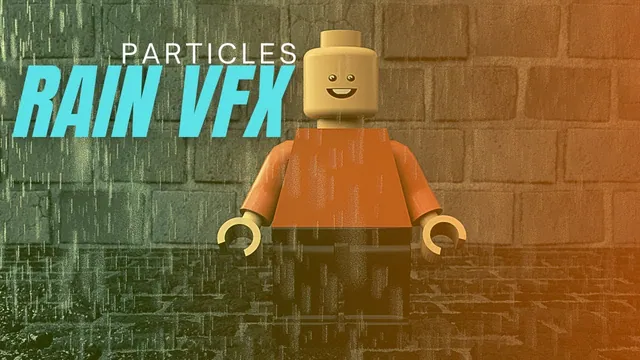
This rain effect uses two particle populations: drops falling into the scene and smaller particles emitted at their impacts. The first population establishes the rainfall; the second makes contact with the character and ground readable. Copied spheres provide render geometry, and motion blur turns the fast motion into streaks.
The demonstration uses Houdini’s POP tools, a minifigure, a floor, and a back wall. The minifigure is optional; other collision geometry can serve the same purpose. Rendering is demonstrated primarily with an Octane setup, with brief references to Mantra. Exact Houdini and renderer releases are not established, so the renderer controls described here belong to the recorded workflow.
Build an emitter above the shot and establish collisions
From 01:00, inspect the scene before simulating. The floor is a box adjusted to a 20-by-20 footprint, and another box forms the rear wall. The rain emitter is a 20-by-20 grid translated upward by 12 units at object level. Its elevated position places the source outside the camera’s view while covering the scene below.
Select the emitter and use the Source Particle Emitter shelf tool around 03:00. Houdini creates an AutoDopNetwork for simulation and a separate source-particle Geometry object that imports the result into SOPs. Keep those roles distinct: the source grid determines where particles originate, the dynamics network evolves them, and the imported geometry is where the lesson later separates and renders them.
Initial playback shows falling particles passing through the scene. Assign Static Object collision behavior to the ground and back wall. The minifigure is a subnet containing several Geometry objects, so the instructor assigns collision behavior to its individual parts rather than assuming that selecting the outer container has prepared them all.
Return to the beginning and play again. The useful checkpoint is contact with both the ground and the figure. Bouncing particles are acceptable at this stage because the next step replaces that response with a controlled impact event.
Turn impacts into a useful event and remove unused particles
Around 06:02, add POP Collision Behavior in the particle network. Enable the POP Solver’s collision-attribute option so the collision behavior has the information it needs. With the response initially set to None, the demonstrated red coloring makes impacts easy to identify.
Change the response to Die. On playback, the original falling particle disappears at contact; it no longer remains as a red bouncing particle. Name the collision group hit. That group is the bridge to the secondary emission setup, even though the original particle is being removed.
The narration also loosely describes particles hitting other particles. The supported result here is impact against the prepared scene colliders; the lesson does not establish a separate particle self-collision system.
Add POP Kill with its bounding box enabled to catch particles that fall below the useful scene. The instructor moves this region downward, settling on a Y offset of approximately −2 and an X/Z extent of 30. Check the displayed box against the floor and camera: the purpose is to remove missed drops below the shot, not to kill visible rain before it reaches the scene. These dimensions depend on the example’s scale.
Emit brief splashes from the impact group
At 10:02, create a POP Stream and connect it to the merge used by the particle system. Select hit as its source group, then add the replication operation for secondary particles. The transcript identifies the stream and replication sequence but does not fully describe every connection; use the video network view when reproducing its exact wiring.
The instructor disables the impulse-style emission in favor of constant emission, reduces the demonstrated rate from 500 to 100, and sets life expectancy to 0.2 with a variance of 0.1. The important behavior is a brief burst of smaller particles at contact, rather than a long-lived second cloud accumulating around the character.
Add POP Wind for air resistance and noise. It gives the secondary motion some variation, but it also changes how quickly the falling rain travels. Later in the lesson the instructor notices that the wind has slowed the effect more than desired and considers reducing it. Judge that choice in playback or a flipbook, not only by the density of a still frame.
At this stage, look for secondary particles leaving the figure and ground while the primary drops die on impact. If the result is only bouncing primary particles, revisit collision behavior before adjusting splash size or render materials.
Separate falling rain from splash particles in SOPs
From 14:03, work in the Geometry object that imports the simulated particles. The first attempt to isolate the collision group with Blast is revised: hit is an impact selection, whereas the desired render branch needs the newly born splash particles.
Return to the dynamics network and assign the new particles a birth-group name, splash. In SOPs, use Blast with Delete Non-Selected to retain that population. Build a second branch for the original falling particles. The instructor tests several group choices before selecting the stream belonging to the original emitter.
This correction matters because “everything except splash” and “the original emitter’s stream” are not automatically interchangeable in an evolving network. Inspect each branch separately. One should show the short-lived impact particles; the other should show the falling rain. A selected node’s viewport highlighting briefly makes the separation look wrong in the recording, so also check the actual displayed output without relying on highlight color alone.
Copy differently sized spheres, then judge them in the render
Around 17:00, use Copy to Points with a polygon sphere as the geometry input and the isolated splash particles as target points. The instructor tests radii of 0.01 and 0.1 before choosing 0.03 for an initial viewport assessment. An accidentally animated radius channel is removed with Delete Channel so that the value remains fixed.
Duplicate this arrangement for the falling-rain branch and give it a larger sphere. Merge the two copied results. The separate branches make it possible to change the relative size of falling drops and splashes without changing the simulation’s population groups.
Those initial radii are not the final look. During IPR review around 27:00, the splash radius is reduced to 0.01 and the falling drops are set to 0.03. Near the end, the smaller splash size is increased to 0.02 because the contact detail is difficult to read. This is a useful sequence of comparisons: establish separation in the viewport, then adjust the size hierarchy at the camera distance and rendered exposure.
Make motion and contact readable in the final shot
From 21:00, the lesson checks motion-blur settings. In the recorded Octane setup, deformation motion blur is enabled; the Mantra aside identifies Allow Motion Blur. The resulting streaks depend on the renderer and moving geometry, so the brief Mantra comparison is not a complete equivalent renderer setup.
The Octane material network uses a specular material for rain and separate materials for the floor and wall. The instructor adjusts opacity for the intended transparent appearance. A glass-like material is suggested for Mantra, but it is not developed into a physically calibrated water shader in this recording.
Assign the rain material to the imported particle geometry. Hide the actual emitter grid from rendering while keeping the particle result visible. The instructor initially hides the wrong object and corrects it around 26:01; if the rain disappears entirely, check which object’s visibility was changed before rebuilding the simulation.
The primary emission rate is increased from the displayed 5,000 around 29:06, followed by another calculation and IPR inspection. The final increased value is not spoken clearly enough to reproduce. More particles make the scene denser and slower to calculate, so judge their coverage after they have had time to reach the figure and floor.
The closing result is approximately two seconds of rendered animation repeated for presentation. That repetition does not establish a seamless looping simulation. Small lateral streaks reveal the splashes, although some remain hard to see against the background. The final useful checks are therefore visual and specific: sustained falling rain, no visible emitter, smaller contact splashes on the figure and ground, and enough contrast and scale for those splashes to survive the final camera view.