
Houdini & Procedural Workflows / Houdini
Houdini Tutorial | Grooming 3D Grass and Creating a Walkway
Written guide
Playing loads YouTube content. YouTube processes data after activation.
Watch on YouTubeIf the player is blocked or unavailable, use Watch on YouTube.
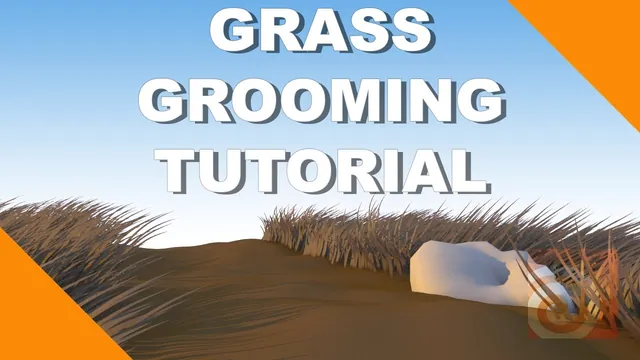
Grass made with Houdini’s fur tools becomes more useful when you can choose where it grows, direct the blades and shape their length locally. This lesson builds two patches beside a bare walkway, then uses grooming brushes to replace an uncontrolled starting shape with an intentional flow.
The lesson assumes familiarity with the earlier fur-based grass setup and moves quickly through its initial settings. It does not supply a complete grass material or every starting density value. The exact Houdini version is unverified, and the recorded shelf layout belongs to the historical grooming workflow shown in the video.
Select the grass patches before adding fur
At 01:01, begin with a Grid and Mountain for the ground. Before adding fur, select the polygons that should support grass. Open the selection tool’s brush-picking mode and adjust its radius with the mouse wheel. Paint a patch on one side of the intended path, then add the other side to the selection.
The instructor uses Shift to extend the selection and describes Control on the recording’s Mac setup to subtract or refine parts of it. Treat those as the demonstrated modifiers; verify the active selection mode in your own interface if they behave differently.
At 02:00, apply Add Fur to the selected patches. The important result is spatial: fur appears on the two selected sides, while the strip between them remains bare. This creates the walkway by excluding ground polygons from the grass source, rather than by cutting a path through already generated blades.
Check the selection at bends and narrow sections before continuing. If grass appears in the path, inspect which ground faces were included. Brush grooming later changes the curves’ shapes; the source-area selection is the step that establishes where they originate.
Establish a manageable starting shape
At 03:05, add a ground color early in the geometry chain. The first grass preview is excessively tall and reads like hair standing on a surface. Reduce length and density, including adjustments in the guide settings, and increase thickness for the desired blade appearance.
These setup edits are abbreviated in the narration because they repeat an earlier lesson. The captions do not support an exact numerical preset, so match the visible starting proportions in the video rather than treating this article as a parameter list. The example keeps much of the default brown appearance and does not attempt the earlier lesson’s green grass shading.
Preview the patch before grooming. You need enough visible structure to judge direction, while still being able to work interactively. At 06:03, add an environment light to help read the curves and their shadows. The immediate problem is their scattered direction, not a completed lighting setup.
Comb the curves from a useful viewing angle
Choose Screen Brush from the grooming tools. At 07:01, adjust the brush size and stroke over the patch to direct the hair. Its behavior follows the current camera view and the movement of the brush, making the viewing angle part of the operation.
Use radius to control how much of the patch a stroke affects and strength to control how strongly it moves. Start by establishing a broad flow, then work on smaller areas. A very large brush can alter neighboring curves that you intended to leave alone; a stronger setting can change the tips more aggressively than a gentle pass.
At 08:00, adjust Lift to help keep the curves near their roots from dipping beneath the ground. Inspect from another angle after grooming, because a shape that looks acceptable in one projection can still intersect the terrain or lean too far when seen from the side.
The instructor then pulls some curves more upright before adding a controlled bend again. This is a useful correction sequence: restore a readable starting shape locally, then reintroduce the intended curve. A few blades are allowed to point elsewhere instead of forcing the entire patch into identical alignment. The final directional appearance is an artistic choice demonstrated here; the lesson’s brief biological explanation is not needed to reproduce the grooming method.
Choose the right tool for local length changes
At 09:10, the demonstration moves from direction to length. Three tools solve different problems:
| Tool | Demonstrated behavior | Useful check |
|---|---|---|
| Extend Hair | Pulls and extends the curves along the brush movement | Check both added length and the resulting direction. |
| Length Adjust | Moves the brushed area toward a target length | Compare the target value with the patch’s existing scale. |
| Cut Hair | Trims the curves where the drawn stroke crosses them | Choose a view that exposes the outline you want to cut. |
At 10:00, Extend Hair lengthens the brushed area toward the cursor. Length Adjust instead uses a target value: the example tries 0.1 to shorten the curves, then raises the value to grow them. The instructor describes the observed growth as following the normals, in contrast to the directional pulling of Extend Hair. This is the behavior shown in that setup, not a complete specification of every brush option.
At 11:03, use Cut Hair when a target-length brush is too indirect for the silhouette you want. View the patch at an angle and draw across the curves to trim their outline. Move around the patch and inspect the cut from additional angles before making more strokes.
The final preview shows a more coherent direction and locally shaped length beside the bare walkway. Judge those outcomes separately: roots should remain in the intended patches, the path should remain clear, curves should sit sensibly above the terrain, and the trimmed profile should work from more than one view. The lesson ends with a grooming demonstration, not a finished vegetation simulation or a fully shaded environment.