
Character FX & Animation / Maya
Finalizing the Face Control Curves
Written guide
Playing loads YouTube content. YouTube processes data after activation.
Watch on YouTubeIf the player is blocked or unavailable, use Watch on YouTube.
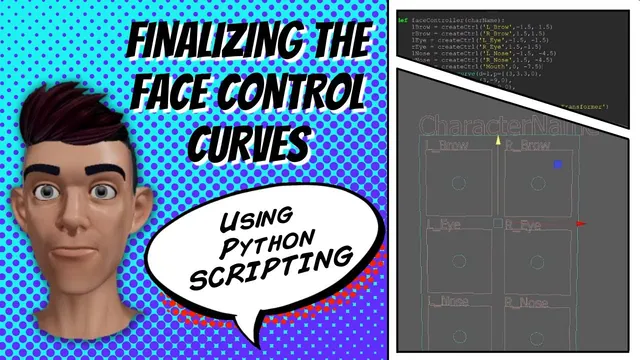
The individual face widgets are laid out, but moving the complete interface is still awkward. This lesson adds a selectable outer frame, a character label, and a parent relationship that carries all seven widgets together. It also changes the single-widget builder to return its main group so the layout function can organize the objects it creates.
The result is a movable control panel placed beside the example character’s head. Facial deformation wiring and a user interface for choosing character names or positions are deferred. The exact Maya release is not identified.
Fit a closed frame around the existing widget layout
At 00:00–05:02, the instructor reuses the earlier square-curve construction and changes its points to surround the complete face-control layout. The first and last point are made identical so the outline closes.
Several trial sizes are inspected. The frame expands to approximately three units on either side, extends below the mouth row to about negative nine in Y, and gains extra height so it does not cut through the upper labels. The exact dimensions belong to the widget layout used in this scene.
This visual fitting step is useful because a mathematically centered box can still be a poor interface frame. Labels and control shapes need clearance, not just their transform origins. Inspect the top labels, side widgets, and lowest mouth control before accepting the outline.
The frame receives a character-based control-transformer name. Its intended role is to move the panel, so it must remain selectable. That differs from the templated guide frames inside the individual widgets.
Add a character label without templating the mover
During 05:02–09:03, text-creation code is reused for the panel’s character name. A character-name variable feeds both the visible label and related generated names, replacing repeated literal placeholder text.
Copying the earlier widget code also copies an unwanted template operation on the outer frame. The instructor corrects the target so the name tag is templated while the outer frame remains usable as the mover. The label is parented beneath the frame so it follows that movement.
Another error comes from concatenating the textCurves return list with an attribute string. The appropriate returned item must be extracted before it can be used as an object-name string. The lesson fixes this by indexing the return value in the relevant operations.
Test the result at this intermediate stage. The frame should be selectable, the label should serve as display text, and moving the frame should carry the label. At this point, the seven existing widgets still need their own parent relationship to the frame.
Return each widget’s main group to the layout function
At 09:03–11:01, the individual control-builder function is changed to return the main group it creates. The face-layout function captures each return value for the left/right brows, eyes, nose controls, and mouth.
A function that creates scene objects does not automatically make its local variables available to its caller. Returning the group name gives the caller the specific reference needed for the next operation. This avoids reconstructing each name later from assumptions about suffixes.
The seven returned groups are parented beneath the outer frame. A missing comma is corrected during the first test. Check that every returned value corresponds to the whole widget group rather than only its movable circle or decorative frame; parenting the wrong level would leave parts of the widget behind or interfere with its internal setup.
Move the outer frame and inspect all seven widgets together. Then test an individual circle to confirm that grouping the panel has not removed the local interaction established in the earlier lessons.
Place the panel beside the character without confusing it with a head attachment
During 11:01–14:03, the function clears the selection after creating the panel. The instructor then positions the outer frame near the example head, using X twenty and Y one hundred seventy for this scene.
Those are demonstration coordinates. The source explicitly notes that a more general automated rig might start at the origin or expose the position as input. This lesson does not compute an offset from the head’s bounds or automatically discover a suitable placement for arbitrary characters.
Placing the panel visually beside the head also does not constrain it to the head. The demonstrated operation changes the frame’s translation; it is not a live follow connection. Keep the distinction clear when testing movement later in the rig.
The character label is raised slightly again to give the top of the frame more room. This final adjustment is based on the actual label and layout, not only the original point coordinates.
Test naming, movement, and the remaining integration boundary
At 14:03–15:41, the instructor considers a shorter character name, changes the example label, and reviews the assembled code. A long name can extend beyond the frame even when a short name looks balanced; the recording does not add automatic text fitting.
The completed check is a single outer mover carrying the label and all widget groups, with the individual controls still available for local motion. Confirm the generated names, the returned main-group references, and the final clear-selection state during a clean rebuild.
The closing plan is to combine this control-panel builder with the blendshape-import script so it can drive the face. That connection is not performed in this lesson. The contribution here is the organized, movable interface and the return-value contract that makes later integration more manageable.