
Houdini & Procedural Workflows / Houdini / Python
Day 8 - Loops in Houdini with Python | Houdini 10 Day Introduction to Python
Written guide
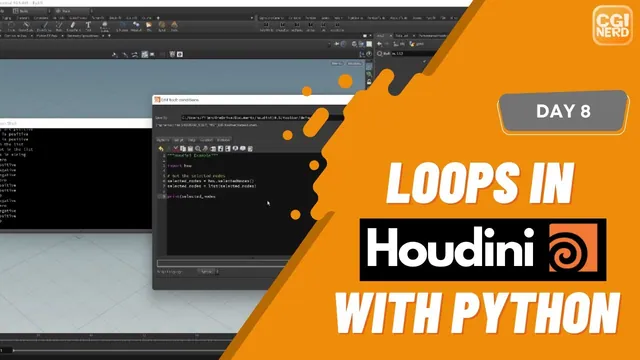
Playing loads YouTube content. YouTube processes data after activation.
Watch on YouTubeIf the player is blocked or unavailable, use Watch on YouTube.
Use loops to repeat an operation across values, then across selected Houdini nodes. Day 8 moves from printing numbers to spacing several sphere nodes along X. Its final troubleshooting step is especially useful: the script changes the parameters correctly, but the viewport does not show all the results until the geometry branches are merged.
Open the Python Shell and a Python shelf tool to follow the output. Apply changes before running the tool. The code below normalizes the spoken examples into Python 3; the exact Houdini and embedded Python versions in the recording are unverified.
Repeat an action for every value in a sequence
At 00:00, a list provides five numbers and a for loop visits each one:
numbers = [1, 2, 3, 4, 5]
for number in numbers:
    print(number)
numbers names the collection. number receives the current item on each iteration. The similar names are a readability choice, not a requirement for the loop to work. The indented body runs once for each item, printing 1 through 5 on separate lines.
The body can contain several operations. Their indentation determines which actions repeat. A statement returned to the loop’s outer indentation runs outside that repeated body.
Use range without including its stop value
At 02:01, replace the explicit list with range(2, 11, 1). It supplies 2 through 10: the arguments specify start, stop and step, and the stop value is excluded.
At 03:00, increasing the step to 2 gives 2, 4, 6, 8 and 10. Using only range(5) gives 0 through 4, which is five iterations. Python’s range tutorial confirms this exclusive-stop behavior.
print("Loop starts here")
for number in range(2, 11, 2):
    print(number)
The leading message separates a fresh run from old shell output. This matters in the recording because earlier printed numbers initially make the next loop’s starting value difficult to identify.
The loop ends when it exhausts the range. The source uses “breaks” conversationally, but this example does not contain a Python break statement.
Make a while loop’s stopping condition explicit
At 04:01, a while loop repeats while its condition remains true. Unlike the for example, its counter must be changed by the body:
number = 1
while number < 5:
    print(number)
    number += 1
This prints 1, 2, 3 and 4. The captions describe a less-than-five condition but later say that five prints as well; those claims conflict. With the normalized < 5 condition above, five is excluded. An inclusive <= 5 condition would print it. The article does not infer which comparison character appeared on screen.
The increment is essential. If the value stays at 1, the condition never becomes false and this loop continues indefinitely. Check the initial value, comparison and update together before executing a loop inside an interactive application.
Space selected spheres through their parameters
At 05:03, create several Sphere SOPs inside a geometry network. They initially overlap. The instructor retrieves the selected nodes, starts an X value at zero and visits each selected node in turn.
At 07:01, the sphere center parameters are identified as tx, ty and tz. The demonstrated operation sets Y and Z to zero, assigns the current X value, then adds five for the next node:
import hou

x = 0
for node in hou.selectedNodes():
    node.parm("tx").set(x)
    node.parm("ty").set(0)
    node.parm("tz").set(0)
    x += 5
For three compatible selected spheres, the assigned centers are 0, 5 and 10 along X. The order follows the returned selection sequence; this script does not sort nodes by name or position. It sets values directly rather than adding five to each node’s previous location.
Use the prepared sphere selection for this exercise. The script does not validate whether every selected node has these parameters or whether they are editable. It also overwrites the demonstrated Y and Z values. An empty selection simply gives the loop no items to process.
Check displayed geometry before blaming the loop
At 07:01, the first run appears ineffective, although no error is shown. The instructor pauses, then identifies a display problem. At 08:01, merging the sphere branches and displaying that Merge reveals the expected five-unit spacing.
Inspect a sphere’s center parameters independently of the viewport. If they changed correctly, check which geometry branch is displayed and whether all the relevant branches contribute to it. Arranging node tiles with the network layout shortcut does not itself arrange their geometry in 3D.
The plain-Python examples were executed during editorial preparation; the HOM example was syntax-checked but not run in Houdini. The lesson’s useful pattern is a small repeated operation with inspectable results: establish the input sequence, change one item’s parameters, update the placement value and verify both data and display.