
Maya & Python Scripting / Maya / Python
Day 2 - Maya Command Module | Maya 30 Day Introduction to Python
Written guide
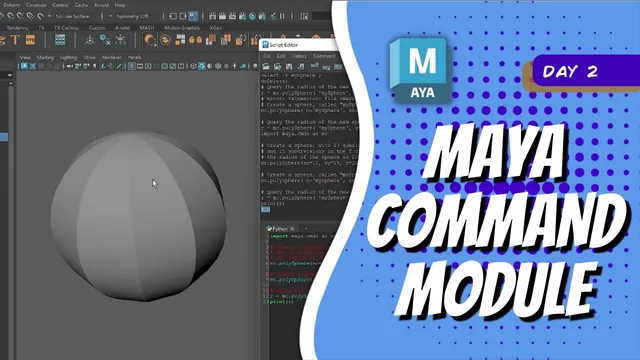
Playing loads YouTube content. YouTube processes data after activation.
Watch on YouTubeIf the player is blocked or unavailable, use Watch on YouTube.
This lesson turns a familiar modeling action into a Python command. The instructor starts by creating a polygon sphere through Maya’s interface, reads the resulting history, then uses the Python command documentation to create and inspect objects with maya.cmds.
The important skill is not memorizing every flag. It is learning how to locate the correct command, understand the argument it expects, and tell whether a call creates something, changes something or returns information.
Start with a known interface action
Open the Script Editor and show both its history and input areas. The instructor creates a polygon sphere and examines the command recorded above. The history exposes the operation’s name and options, but the text shown is MEL. He uses it to find the corresponding Python command rather than treating it as Python source.
After selecting the command name, he opens Command Documentation. The page describes the operation and lists its arguments. This is a stronger starting point than guessing a function solely from an interface label.
Read the mode and type before changing an argument
The instructor points out the documentation’s C, Q and E indicators: create, query and edit. These indicate where an argument can be used. A flag’s presence on the page does not mean it supports every operation mode.
He also introduces argument types such as Boolean, linear and integer. The lesson does not attempt a complete treatment of data types; it uses the reference to show that values must match what a particular option expects.
This distinction becomes practical in the examples. A creation call can produce visible geometry; a query can return a value without changing the viewport. “Nothing new appeared” is therefore not a sufficient test of whether every command worked.
Import the module and keep its alias consistent
The documentation example imports maya.cmds as cmds. The instructor changes the alias to mc and updates the later calls to use the same prefix. The alias is a local name for the imported module, not a different Maya command library.
When adapting a sample, change the import and uses together. Mixing the two names after renaming only the import would no longer match the example’s intended references. The instructor also identifies comment lines beginning with # as explanations for readers, rather than operations the interpreter executes.
He runs selected portions of the example separately. This makes it easier to connect each line to its outcome than executing every example at once and trying to infer which line produced which object.
Separate a visible change from a returned value
The sphere examples create differently sized geometry and inspect an existing object’s scale value. In the query passage, the instructor initially describes the value imprecisely, then corrects it to scale X. The article retains that correction; it does not relabel the queried transform value as sphere radius.
He stores a returned value and prints it so it can be compared with the corresponding visible attribute. This is the relevant diagnostic method: identify what is being queried, inspect the returned value, and compare it with that same property. Comparing scale with radius would test two different quantities.
The captions do not preserve the complete query code accurately enough to reproduce it here as an executable block. Follow the on-screen example for exact syntax and object identifiers.
Build a cube call from its default behavior
The next example starts with the minimal mc.polyCube() call. Executing it creates a cube with default settings. The instructor then reads the command documentation for depth, adds a value of 3, and gets a rectangular box.
He compares the long flag depth with its short form d; both refer to the same option in this demonstration. The lesson’s preference for readable long names is useful while learning because the purpose remains visible at the call site. Short names can be recognized by checking the reference instead of guessed from an abbreviation.
Inspect the created object after each run. A new creation call is not automatically an edit to the earlier object. The recording uses the examples to compare parameterized creation, not to establish a reusable scene-management tool.
Do not assume every echoed MEL name is a Python command
Near the end, the instructor tries to translate the echoed doDelete name directly and finds that it is not the Python command he needs. He searches the Python reference for deletion and identifies delete instead.
The lesson is a lookup procedure: use the history as a clue, read the actual Python command description, and verify that it acts on the intended kind of data. The recording mentions other deletion-related operations in the reference; similar names do not make them interchangeable.
Continue with a small, inspectable experiment
Caption-derived revisit ranges are 00:00–02:00 for sphere history and command lookup, 02:00–04:01 for modes and types, 04:01–07:00 for import aliases and examples, 07:00–09:00 for cube arguments, and 09:00 onward for short flags and the deletion lookup. These are reading references, not official chapters.
The exact Maya release is not established here, and no script was executed for this article. The practical outcome is a method for learning an unfamiliar operation: identify it, check its documented mode and arguments, run a small example, and inspect the correct result. That method supports the later window lesson without assuming a remembered command name is enough.