
Houdini & Procedural Workflows / Houdini
Creating a Cinematic Look with Depth of Field in Houdini
Written guide
Playing loads YouTube content. YouTube processes data after activation.
Watch on YouTubeIf the player is blocked or unavailable, use Watch on YouTube.
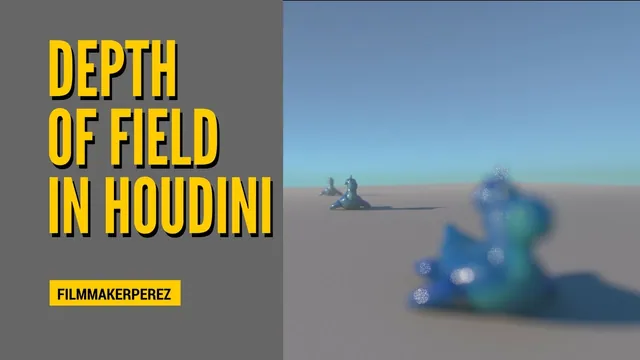
Depth of field directs attention by keeping a chosen subject sharp while nearer and farther objects become softer. This lesson demonstrates the necessary camera and Mantra settings, then adds a low-density cloud volume and colored lighting to create a separate atmospheric depth effect.
The example uses copies of Houdini’s rubber-toy test geometry placed at different distances. The exact Houdini release is unverified, and the rendering workflow is the historical Mantra setup shown in the recording. The lesson does not establish equivalent controls for Karma or another renderer.
Arrange a scene that makes the focus change visible
At 00:22, create a Geometry object and choose the rubber-toy test geometry. Split the viewer so one pane can show the camera composition while another remains a perspective view for inspecting the camera and its handles.
Create a camera from the viewport’s camera menu. Locking the camera to the view lets viewport navigation move that camera. With the lock off, navigating can leave the camera view instead; reselect the camera from the view menu when necessary. This distinction prevents an apparently improved composition from being only a temporary perspective view that will not render.
Use Transform branches and a Merge to make additional copies of the test object at different distances. The lesson places one farther back and another closer to the camera, leaving the middle object as the subject. The example tests offsets of about 10 units in opposite directions, then repositions the camera to include the subject properly.
These copies provide a clear comparison. A single isolated object would make it harder to tell whether the camera’s focus range is doing what you expect.
Distinguish focal length from focus placement
From 02:00, select the camera and use Show Handle to access its controls. Place the intended focus near the subject’s eyes. The instructor considers the space between the eyes, while noting that one eye could instead be the chosen emphasis.
The camera initially has a 50 mm focal length; the instructor changes to a shorter lens for a wider view. Focal length describes that lens/framing choice. Focus distance places the plane of sharpest focus. Moving the focus plane and changing the lens are different operations, even though both affect how the shot reads.
Around 07:03, right-click the camera handle and select Focus Handles. The square identifies the chosen focus plane. Adjust the near/far focus controls so their indicated region is concentrated around the middle subject instead of spanning almost the whole scene. Treat those indicators as composition aids and verify the apparent sharpness in the render; the transition into blur is not a hard binary boundary.
The first test render remains sharp everywhere despite those adjustments. That result introduces the missing renderer setting rather than proving that the focus handles failed.
Enable depth of field on the render that uses this camera
At 08:01, go to the output context and select the Mantra node. Confirm that it references the intended camera. In its Rendering settings, enable Depth of Field, then return to Render View.
The demonstrated result now keeps the main object in focus while the foreground copy becomes strongly blurred and the background copy also softens. The camera supplies the focus arrangement; the renderer must be told to calculate the effect. Both sides of that setup matter.
If following the lesson and everything still looks sharp, check the active render camera and the Mantra checkbox before repeatedly moving focus handles. Then compare the near, middle, and far objects in the same render. The recording does not provide a final aperture value or a sampling-quality recipe, so no numeric preset is implied by the demonstrated handle positions.
Add atmospheric haze as a separate layer of depth
Around 09:58, the instructor adds a box around the scene and uses the cloud tools to create a Cloud Rig. Scale the box so the relevant view is covered and its corners do not intrude into the camera image. This volume is intended to create haze through the scene, independently of the camera’s defocus.
The initial cloud is too dense to see through. During adjustment, the instructor starts changing a resolution-scale control, then corrects course: lower the sampling divisions on the Cloud node for this simple effect and reduce its density multiplier drastically. The demonstrated multiplier moves from 10 toward approximately 0.001.
That number depends on the example’s volume and scene scale. The practical check is that the subject remains visible while more distant objects acquire a lighter, hazier appearance. If the scene disappears behind a white mass, density is still too high for this intended look. Merely reducing resolution will not turn an opaque cloud into a subtle haze.
The recording calls this a visual shortcut. It does not model a measured atmosphere or establish that every distant object should always become lighter and less saturated under all lighting conditions.
Finish the ground and light direction without confusing them with focus
At 12:05, add a grid, scale it to serve as ground, and move it slightly down as needed. Enable Render Light Geometry on the skylight so its background appears in the image. The instructor gives the sky a bluish color, makes the sunlight mildly warm, and introduces a dark blue tint into the sunlight’s shadows for the intended style.
The sunlight’s rotation initially has channels controlling it. Around 14:01, the instructor removes those channel connections before rotating the light to come from the side. This deliberately takes manual control of that light; it is not a necessary step for enabling depth of field itself. If following this step, recognize that deleting the channels removes the rig’s existing connection to those values.
The final image combines three readable choices: focus separates the middle subject from near and far copies, haze changes the appearance through depth, and side lighting shapes the subject. Evaluate them separately when troubleshooting. A camera-focus issue should be checked at the camera and renderer; an obscured scene at the cloud density; and an unhelpful shadow direction at the light.
For another demonstration of particle-render settings, the dissolve lesson includes a separate global/object motion-blur check. Motion blur and depth of field are different effects, so enabling one does not establish that the other is configured.