
Character FX & Animation / Maya
Controlling Blend Shapes with Set Driven Keys
Written guide
Playing loads YouTube content. YouTube processes data after activation.
Watch on YouTubeIf the player is blocked or unavailable, use Watch on YouTube.
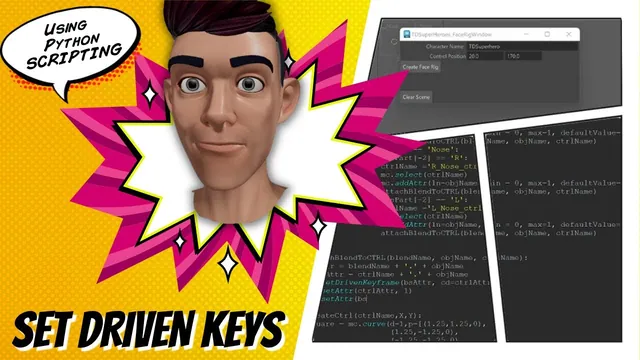
This lesson connects custom face-control attributes to blend-shape weights with driven keys. The face setup already imports target shapes and creates matching attributes on a control. The new helper establishes a relationship between each controller attribute and its corresponding target weight, then restores the control to its neutral value.
The demonstration depends on names and functions built in earlier lessons. It is not a complete face-rig script, and the exact Maya release is not identified.
Reconcile naming changes before making connections
During 00:00–02:03, the instructor explains changes made between lessons. Adding a trailing blend token changed where right/left information appears when a face target’s name is split. The face-side lookup moved from index -1 to -2. The eye names use a different token position, identified as index 1, to suit names containing look-left/look-right information.
These are conventions of this project. A fixed token index only works while the actual imported names follow the expected structure. Inspect the tokens from a real target before using the index; successful string splitting alone does not prove that the selected token means left, right or a particular expression.
The blend-shape creation result is stored for later use. Because that command returns a list in the demonstration, the script takes element zero to obtain the node name. The control name is also retained rather than relying on whichever object happens to be selected later.
Build the driver and driven attribute paths
From 02:03–06:02, a helper is defined to receive the blend-shape node name, target/object name and control name. It is called after the corresponding custom control attribute has been created.
The driven path joins the blend-shape node name, a dot and the target’s attribute name. The driver path similarly joins the control name, a dot and its matching custom attribute name. The shared target token is what pairs the two endpoints in this naming scheme.
Inspect both complete paths before keying. One should identify the target weight on the deformer; the other should identify the animator-facing attribute on the control. Confusing a scene object’s name with an attribute path can leave the intended connection unresolved even when the individual nodes exist.
The first driven-key call uses the driven attribute as the positional target and the controller path as the current driver, through cd. The instructor describes a problem with another attempted command form. This article follows the demonstrated working form without generalizing that experience into a claim that Maya’s command documentation is incorrect.
Record the neutral and active states in the right order
During 06:02–08:01, the script first creates a driven key at the current starting state. The demonstration assumes a neutral setup; verify the driver and target are at the intended neutral values before recording that key. The captions do not show an explicit reset of both endpoints immediately before the first call.
The second state sets the controller attribute to 1 first, then sets the blend-shape weight to 1, and records another driven key. The order matters once the first key exists: changing the driver can evaluate the existing driven relationship and replace a weight value set too early.
After recording the active state, the script returns the controller to 0. The intended result is that the driven relationship returns the blend weight to 0 as well. The script does not need to leave the facial target active merely because it visited that state to construct the relationship.
Verify behavior through the controller
During 08:01–08:28, the scene is rebuilt and the instructor changes the custom attributes to show facial targets responding. Test the control endpoint, not only the weight slider on the blend-shape node: the goal is to verify the new driver relationship.
Check neutral, active and intermediate values for each intended target, and confirm that resetting the control returns the face to its expected neutral state. The source demonstrates the connection working but does not specify tangent settings, certify linear interpolation, or test values outside the keyed range. It also reports build warnings without resolving all their causes.
The reusable lesson is the sequence: retain real node names, construct the two attribute paths, key the neutral state, set the driver before the driven value for the active state, key again, and reset through the driver. Naming and state assumptions remain part of that sequence’s correctness.