
Houdini & Procedural Workflows / Houdini
Character Ground Breaking Effect | Houdini Tutorial
Written guide
Playing loads YouTube content. YouTube processes data after activation.
Watch on YouTubeIf the player is blocked or unavailable, use Watch on YouTube.
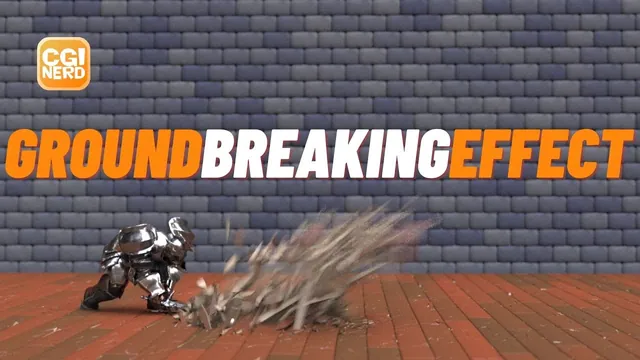
Make a character’s strike tear through a wooden floor by combining a procedural plank layout, directional fractures, an animated collision proxy and a restrained dust pass. The character animation, camera and background already exist. The lesson builds the floor and effect around that shot, then works through timing, shading and motion-blur problems before showing the rendered result.
This is a long, iterative Houdini demonstration using shelf-created rigid bodies, glue constraints and a configured Pyro smoke network. Its exact build is unverified. The source includes corrections near the end that materially change the workflow: the dust color is adjusted through Pyro Look, and the final mismatched plank/color result requires a simulation reset. Those corrections belong to the lesson as much as the initial setup.
Lay out planks with dimension-driven spacing
At 00:38, create a ground Geometry object and a Box representing one board. Reference the box’s Y size into its Y center and divide by two, keeping its bottom on the ground as thickness changes. The working dimensions are approximately 0.1 thick, 0.3 wide and 3 long.
Copy that board to points on a line directed along X. The initial spacing is wrong when the point count changes. Around 04:03, the correction uses board width multiplied by point count minus one for the line’s length. There are N − 1 intervals between N regularly spaced points, which is why multiplying by N gives the wrong spacing. Center the line using an offset based on half its length, then place the array to cover the camera view with some margin.
At 06:00, place the copying inside a For-Each Point loop so later operations can vary per board. Add Point Jitter to the placement points, with X and Y scale set to zero so only Z varies. Tune the stagger while keeping neighboring rows able to cover the floor; excessive offsets create gaps.
At 08:00, build a second line along Z. Its length uses board length times its own point count minus one, and its origin is offset by negative half the length. A second copying loop extends the layout in that direction. The instructor adjusts the row count and final placement against the existing camera rather than defining a universal floor size.
Trim the floor while retaining separate boards
At 11:00, trim excess ends with Clip nodes facing opposite Z directions. The instructor reports that an earlier Boolean attempt did not preserve the desired separate-plank behavior; this is a scene-specific reason for choosing Clip, not a claim that Boolean operations can never support fractured boards.
Clipping leaves open ends. Cap them, then use Exploded View to check that the result still consists of individual boards. That inspection is important before fracture: a floor that only looks like separate planks may behave differently if its topology has been joined unexpectedly.
Exploded View is a diagnostic display operation. Bypass or remove it when judging the actual placement of the floor. Later in the recording, it causes an apparent alignment error that leads to unnecessary adjustments before the instructor recognizes the displaced preview.
Make splinters by fracturing in a compressed space
At 14:01, the instructor tries a VDB-based volume/scatter setup, does not obtain the desired result and returns to IsoOffset. Keep that outcome clear: no VDB performance comparison or successful alternate setup is established.
Scatter points inside the board volume and use them to drive Voronoi Fracture. Ordinary fractures look too much like stone chunks. At 18:00, compress the board before generating its fracture, then expand the result afterward. The first X-axis attempt is corrected to Z, the board’s length direction: scale to 0.1 before fracture and apply 10 afterward. Fracturing in the compressed space stretches the resulting cells into longer splinters when the geometry is restored.
Check that the compressed board still has enough volume resolution to scatter points. The source tests 100, then 50 scatter points. The lower count is accepted for the demonstration; more points are not automatically a better wood pattern.
Vary the fracture, then add detail along the strike
At 20:00, identical boards reveal an identical fracture pattern. Create metadata imports for the copying loops and use their iteration detail attributes to vary the Scatter seed. The expression combines a random value and a fit01 range extending toward 100,000. Its exact node paths depend on the scene.
The first variation changes boards in one direction but repeats them in the second. At 24:00, the instructor adds the second loop’s iteration, multiplying iteration values, and observes greater variation. That observation does not establish unique seeds for every board: products of integer pairs can repeat, and any product involving zero is zero. Treat the result as visual variation in this shot, not a guaranteed collision-free indexing scheme. The complete expression punctuation is not reconstructed from the captions.
At 27:02, add another point distribution along the sword’s intended ground path. Use a diagonal line in XZ, place it around Y = 0.05 within the thin boards, increase its point count toward 200, and jitter the points. Reduce their vertical spread to keep them near the floor’s thickness. A further Voronoi fracture uses these points to make smaller pieces near the intended break.
Compare the fracture strip with the sword at the impact frame. Around 32:03, the instructor discovers that Exploded View is responsible for an apparent offset, undoes the compensating edits and removes the diagnostic node. Verify alignment on the actual assembled geometry before moving the fracture path.
Separate simulation start from visible floor continuity
At 33:03, create an RBD fractured/packed setup and add a collision ground plane. Hiding that plane’s display keeps it out of the view while it still serves the simulation. Initially the pieces settle and protrude under gravity, so Glue Adjacent is used to hold the fractured floor together.
The character has no strike at frame 30 and contacts the floor at 31. The instructor initially starts the DOP simulation at 30 to avoid unnecessary earlier computation. That leaves no simulated floor before the start, so a Switch supplies a pre-simulation branch and then changes to the imported simulated result.
At 39:00, replace the pre-simulation fractured branch with a duplicate of the plank construction that bypasses fracture. This gives intact boards before impact. Recheck Switch input order after reconnecting: the source explicitly discovers that the replacement branch occupies the wrong input. The initial keys use input zero at frame 29 and input one at frame 30, then are shifted while refining contact timing.
Do not confuse three timelines: the character’s useful animation begins around frame 10, the dynamics start near the strike, and the display branch switches to the fractured result at the chosen contact moment. A later correction moves the simulation start to 29. Inspect the final relationship frame by frame rather than retaining the first timing numbers as a fixed recipe.
Drive the break with a hidden animated proxy
At 43:03, create a polygon Sphere in a separate collision object, positioned below the floor. Animate its center so it travels through the intended break path near the sword’s strike. This proxy creates the destruction; the tutorial does not build a direct sword-mesh collision setup.
The viewport is slow, so the instructor makes a flipbook to assess timing and adjusts the later position around frame 48 to better follow the detailed fracture strip. A slow simulation display is not a reliable real-time judgment of the strike.
Make the sphere a Static Object and hide its visible geometry. The first simulation does nothing because the sphere was animated inside its Geometry object. At 49:00, enable Use Deforming Geometry so that internal geometry changes reach the collider. SideFX’s Static Object reference explains this updating behavior separately from object-level transforms.
The next result moves too much of the glued floor together. Reduce glue strength from 10,000 toward 100 and compare again. This scene-specific value allows the desired break while surrounding pieces react. The setup is driven by the collision and glue response, not by a manually deleted constraint mask.
At 51:00, keyframes are moved in the wrong direction, restored and revised. Starting the simulation one frame earlier, at 29, finally gives a better contact relationship around 53:02. Reset, replay and inspect a flipbook after timing changes. The accepted result is the instructor’s shot judgment, not a physically calibrated wood-fracture test.
Use debris points to source a short dust effect
At 54:03, apply the Debris shelf tool to the ground. It creates source, simulation and visible-debris objects. The instructor removes the latter two and retains the debris source for smoke emission.
The source’s rest frame must match the relevant fractured geometry. Trials at 29 and 30 fail to produce the expected points; 31 succeeds. Inspect that transition instead of assuming the rest frame must equal the dynamics start frame. The source’s color ramp helps distinguish newly activated, aging and inactive points.
At 57:01, reduce lifetime toward 0.1, then enable the demonstrated release/end-of-life removal options. The intended output is a short-lived moving source rather than persistent points across the whole floor. The captions’ explanation of individual release states is imprecise; verify the actual output population as each option changes.
At 58:01, create the configured Billowy Smoke network, remove its sample torus source and connect the debris points. A Keep Input adjustment in the generated source chain is part of making emission appear, but the full generated wiring is not reliably transcribed. Inspect the source and final smoke outputs rather than substituting an invented network.
Render a test to check that the intended output is smoke and that visible particle spheres have not accidentally entered the render. Reduce density for a subtle accent; later the instructor brings the look density toward 1 for visibility and increases dissipation to shorten its persistence. At 01:05:02, compare the later frames: dust should clear rather than obscure the character and floor. Density/look and simulation persistence are separate judgments.
Keep intact and simulated shading consistent
At 01:07:00, add a brown color to the wood. It appears before the Switch but not in the imported simulation. Changing DOP Import to fetch unpacked geometry makes the brown visible in a render. Inspect both sides of the Switch after any material or attribute change.
The fracture creates inside/outside groups. Apply a lighter color to the interior faces to suggest exposed wood; the lesson chooses vertex color for this step. An early placement of the color node does not show the expected result, while moving it later does. The instructor suspects stale calculation but does not prove that cause at this point.
At 01:13:00, add per-board variation through loop metadata. The intact and fractured branches have separate loops, so one expression cannot blindly reference the same metadata node for both. The instructor creates a Color node for each branch, updates the paths, and compares their outputs so a board should not change color merely because the Switch changes branches. Values around 0.2–0.4 are artistic trials for one color component, not a complete measured wood shader.
At 01:19:03, add a small PolyBevel with two divisions to the source board, then recalculate. This late topology change affects downstream fracture and simulation. Near 01:31:00, the final render setup reveals mismatched planks and colors despite correct upstream geometry. Resetting the simulation and recalculating fixes the demonstrated mismatch. Keep this final correction in the workflow: the prior cache must agree with the changed source.
Verify velocity blur separately from depth of field
At 01:21:09, the render already has depth of field, but fast fragments have crisp edges. The lesson checks three separate requirements: renderer motion blur, geometry velocity, and the object’s Geometry Velocity Blur setting.
A Trail attempt initially fails; the instructor later corrects its mode to Compute Velocity and compares it with Point Velocity. Point Velocity is kept. At 01:25:03, changing the object’s sampling setting from No Blur to Velocity Blur finally produces the desired streaking. Camera shutter time then controls its extent.
Temporal velocity estimation needs sensible correspondence between samples. SideFX’s Point Velocity reference is useful when checking that prerequisite; the lesson does not prove that differencing is reliable across the intact-to-fractured topology switch. Inspect the transition as well as established simulated frames before trusting a final sequence.
Use the camera focus handle to place focus near the character while retaining some readable fragments. Defocus and motion blur solve different visual problems. The instructor restores the existing brick background and evaluates a still before rendering the sequence.
Apply the final dust-color correction
At 01:28:02, the instructor proposes assigning a separate Billowy Smoke material, then returns at 01:29:00 to correct that advice for this generated setup. The effective color adjustment is in Pyro Look. It is tuned toward the wood’s brown rather than a bright diagnostic color.
The lesson closes with a rendered destruction shot after that look adjustment and the simulation reset. The background, character animation and some finishing tweaks remain inherited or off camera. The supported result is a timed, art-directed floor break with dust and motion blur; it does not establish universal collision settings, unique random seeds or a production-ready material/velocity pipeline for arbitrary geometry.