
Houdini & Procedural Workflows / Houdini
Changing the Default Color and Shape of Nodes in Houdini | Houdini Quick Tip
Written guide
Playing loads YouTube content. YouTube processes data after activation.
Watch on YouTubeIf the player is blocked or unavailable, use Watch on YouTube.
A distinctive node shape or color can make a large network easier to scan. This quick tip shows the difference between changing one node’s appearance and setting the appearance used when another node of that type is created.
The recording uses geometry nodes and Nulls as examples. It changes their network-editor appearance, not their geometry output or simulation behavior. No particular project asset is needed.
Compare an individual change with a default
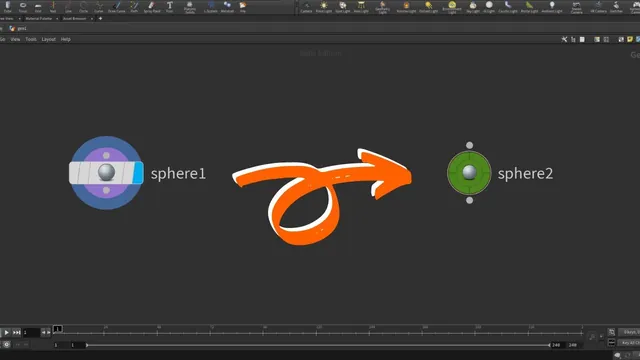
The instructor opens the color palette with C and the shape palette with Z in the demonstrated Network Editor. He drags a shape onto a geometry node, then creates another geometry node. The new node still uses the original shape.
That second creation is the important test: an appearance change on a visible node does not, by itself, demonstrate a new default.
He then repeats the shape operation while holding Ctrl during the drag. Creating another geometry node now produces the chosen shape. He performs the same comparison for color, using Ctrl-drag to make newly created geometry nodes green in the example.
Use that sequence when following along: change the appearance, create a new node of the same type, and inspect the result. It is more reliable than assuming the modifier was held because the first node looks right.
Make output markers easier to recognize
The instructor next uses a Null named as a geometry output. He changes its default shape and color so those nodes are easy to spot when looking for where information leaves a network section.
There is a scope distinction here. The example’s name communicates “output,” but the demonstrated default belongs to the node type. This is not evidence of a rule that styles only Nulls whose names match an output convention. Keep that difference in mind before choosing an appearance intended for only a subset of your Nulls.
The lesson changes visual organization; it does not add an export operation or change a Null into another kind of node.
Restore and verify the appearance
The instructor returns to the palette’s default shape and repeats the modifier-based drag. During the color reset he questions whether Ctrl was held, then creates another Null to check the result.
This makes the final troubleshooting step concrete: if a new node does not inherit the intended appearance, repeat the palette operation with the demonstrated modifier and test with another new node. The source does not establish persistence across machines or a configuration-file deployment procedure.
Caption-based ranges are 00:01–01:00 for the palettes, 01:00–02:01 for changing one node versus the default, and 02:01 onward for Null output markers and restoration. These are reading references, not seeking controls. The exact Houdini release and current shortcut compatibility remain unverified.