
VFX & Production
Rendering and Compositing with Houdini, Nuke, and Karma: Complete Workflow Tutorial
Written guide
Playing loads YouTube content. YouTube processes data after activation.
Watch on YouTubeIf the player is blocked or unavailable, use Watch on YouTube.
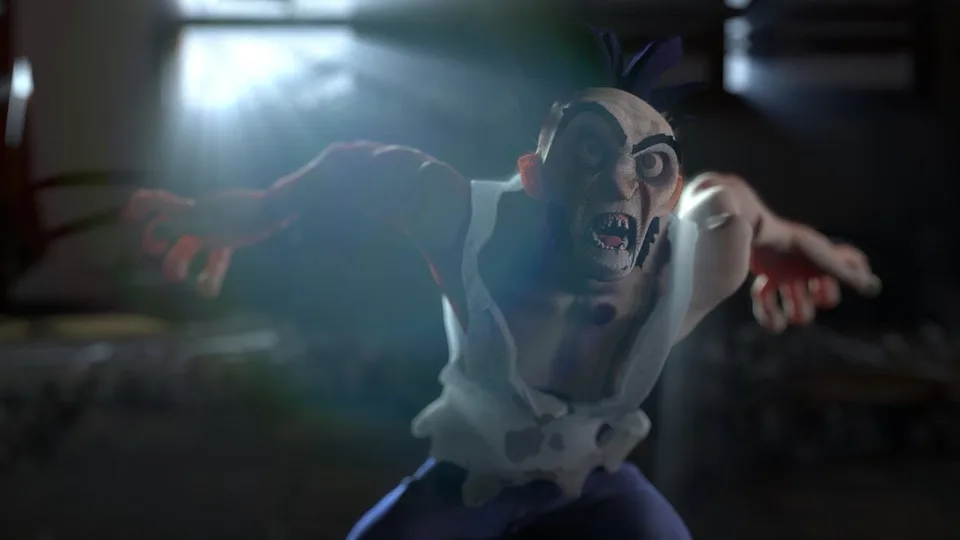
Export useful Karma render passes from an existing Solaris scene, reconstruct the image in Nuke, and use depth and lighting information for an art-directed composite. The lesson separates beauty contributions from utility channels, then works through alpha handling, defocus, haze, rays, flare and shadow adjustment.
The character, environment, materials, lights and camera are already staged. This is not a from-scratch scene-building or color-management tutorial. Exact Houdini/Nuke builds are unverified, and the final reconstruction retains a small difference around the eyes. Several late connection and alpha repairs are part of the demonstrated workflow rather than evidence of a perfectly reproducible finished script.
Export passes according to the work they will do
At 00:00, the Solaris stage combines the character and its material assignments with the imported environment, lights and camera. Inspect the stage at or after the camera exists. The recorded render settings use HD 1080, camera one, Karma XPU and 256 samples; these are this shot’s settings, not a general quality target.
The two lights have key and rim tags. At 02:01, the beauty is split by those tags, while selected component passes separate diffuse, glossy reflection, transmission, coat and subsurface contributions. Transmission matters for the transparent covering over the eyes; coat contributes to the claws; subsurface scattering contributes to the skin.
The scene has no demonstrated emission or volume contribution. Albedo, camera-space depth, shadows and object/material Cryptomatte are also discussed or exported, but they do not all belong in an additive beauty sum. Ambient occlusion is not enabled for this export.
The distinction is practical: component passes describe parts of the rendered lighting result, while utility passes support later selections or effects. SideFX’s AOV documentation describes render variables separately from the beauty; enabling a pass does not mean it should automatically be added to the image.
Read the multilayer image and inspect its channels
At 06:02, open the saved render in Nuke with a Read node. Set the project’s full-size format to HD 1080 to match the rendered image. Select a node and connect it to the Viewer to inspect its output; maximize a pane when needed and keep the properties stack manageable.
At 08:02, create Shuffle nodes that route individual input layers into the visible RGBA channels. Rename each extraction by its purpose, such as diffuse or coat. Double-click the intended node to bring its properties forward before changing the selected layer. Several nearly identical Shuffle nodes make it easy to edit the wrong pass otherwise.
Keep a direct view of the original beauty available for comparison. It is the reference for reconstruction, before adding stylistic effects. This lesson does not establish a specific OCIO configuration or verify cross-application display transforms; those remain prerequisites to a rigorous color comparison.
Choose one reconstruction method and avoid double counting
At 10:00, the instructor first demonstrates an alternative: extract key and rim light contributions, then combine them with Merge Plus. In this two-light scene, that comparison appears to reproduce the beauty. The two branches are then disconnected from the working reconstruction.
The main reconstruction instead adds the selected diffuse, coat, glossy reflection, subsurface and transmission contributions. Do not add the full light-group beauty again on top of those components, or also add the original beauty. That would count the same illumination more than once.
Foundry’s Merge operation reference defines Plus as A + B. Over is an image-layer compositing operation with alpha behavior; it is not the same as adding independent lighting contributions. The lesson deliberately changes the merge operation while rebuilding the image.
At 17:00, adding transmission improves the eyes, but the instructor still sees a small difference there and accepts it for the demonstration. The guide therefore treats the result as a close visual reconstruction, not a proven pixel-identical match. A difference comparison and inspection of missing/overlapping contributions would be appropriate follow-up verification, not a test already performed in the source.
Preserve a deliberate alpha channel through the chain
At 15:00, the component extraction has no useful alpha even though the original Read does. The instructor routes the original alpha into the diffuse Shuffle and uses that branch as the continuing B-side chain.
The intent is to retain one coverage matte while adding lighting RGB. Carrying a wire through B is not, by itself, an unconditional alpha guarantee: the operation and channel selections still determine the output. Foundry notes that Merge generally applies its selected math to alpha as well. For example, adding repeated alphas can increase values, while multiplying by an unsuitable alpha can reduce them. The source’s description of all repeated alpha combinations as erosion is too broad.
Inspect alpha at the extracted pass, intermediate merges and final result. The complete channel-knob settings are not preserved in the captions, so this guide does not claim a universally safe B-wire recipe. Keep the original coverage available and deliberately preserve or restore it where the color operation would otherwise alter it.
At 18:00, a blue Constant is introduced behind transparent areas. The initial connection puts it in the wrong compositing relationship, so the instructor switches the Merge to Under. The lesson’s A/B explanation is useful here: identify which image is meant to sit behind the other, then choose the operation and inputs accordingly.
Match ZDefocus to the exported depth data
At 19:05, add ZDefocus after the image composite. Its default depth selection does not match the exported layer, so the effect initially fails. Choose the actual camera-depth channel from the render’s channel list. The spoken caption renders its name approximately as depth_extra.Z; treat the loaded file’s channel menu as authoritative rather than assuming that spelling is universal for Karma.
Place the focal point on the face. Switch to the focal-plane diagnostic view, then widen the in-focus range until the desired part of the face is included. At 21:00, change the math interpretation from the initial far-zero mode to depth. Foundry’s ZDefocus guidance distinguishes depth encodings; the choice must match the data, not simply the renderer’s name.
The blur size and maximum have different effects. If the distant background has reached the maximum, increasing size can still change nearer regions without increasing that background blur. The instructor compares this on the hand, then uses values around 20 for both controls. Those are artistic settings for this image, not a recovered physical camera/lens model.
Turn a depth branch into haze without replacing the source data
At 23:03, extract depth into a separate Shuffle. The first wiring does not produce the intended image because the source channel is not routed into RGB. Correct the channel mapping, then use a Grade to remap the large depth values into a useful visible range.
A depth image that appears white may contain values greater than one; it is not necessarily empty. The Grade’s white-point adjustment reveals the structure used for the haze effect. This remapped branch is an artistic image derived from depth, distinct from the original depth channel used for ZDefocus.
At 26:00, combine the haze with Screen so black portions of that branch do not change the image and brighter portions lighten it. The result suggests atmosphere in the background; it is not a rendered volumetric simulation or a physically calibrated depth-to-extinction model.
Add rays and flare as separate image effects
At 27:01, position Volume Rays near the window and raise its quality setting. Looking at that node alone shows the generated rays, not the complete composite. Add another Merge and use Plus to combine the rays with the image before inspecting the defocused result.
At 28:00, add a lens-flare effect near the same light source. Adjust scale, repeats, random offsets/sizes, ring and inner colors, chromatic controls and brightness. The source compares these visually and settles on a subdued blue-tinted result. It does not supply a full lens specification or demonstrate how the effect behaves over an animated sequence.
At 31:03, add a ColorCorrect before the later effects and adjust saturation/gamma. Cryptomatte could support a more targeted adjustment, but the instructor explicitly decides not to use it. Exported Cryptomatte data therefore remains available evidence, not a completed masking workflow in this lesson.
Repair the shadow branch and recheck the windows
At 32:02, extract the shadow pass and multiply it into the image, grading it to adjust the strength. This is an artistic modification of an already reconstructed render; shadows were not an extra additive term required to rebuild the beauty.
Several repairs follow. A Grade initially is not connected as intended. The shadow operation then affects the window/background treatment because it sits too late in the chain. Around 35:07, move it earlier, before that background composite. The new arrangement loses the needed alpha, and around 36:01 the instructor restores alpha routing and reconnects ColorCorrect before checking the final output.
Trace the final connections after these edits rather than following the first attempted wiring. Verify the character’s shading, transparent window regions and alpha independently. The captions do not provide a complete final node graph or a numeric equality test, so the accepted output remains the demonstrated visual composite with its disclosed eye discrepancy.
The lesson teaches how to reason about passes and their responsibilities: additive lighting, coverage, depth-driven effects and selective look changes. Final delivery/export settings, full color-management validation, motion continuity, exact beauty equality and an independently tested compositing script are outside its demonstrated scope.