
Crowds & Simulation
Houdini Crowd Simulation Basics Tutorial
Written guide
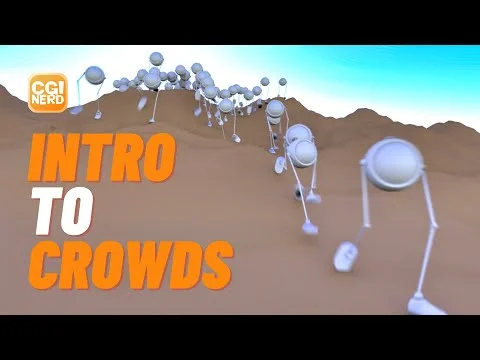
Playing loads YouTube content. YouTube processes data after activation.
Watch on YouTubeIf the player is blocked or unavailable, use Watch on YouTube.
A crowd setup becomes easier to understand when you separate three jobs: preparing one character, distributing a population, and deciding how that population moves. This recording builds those stages from an animated FBX, then adds uneven terrain and a curve to steer the walkers.
By the end, the instructor has a group walking over a shaped surface and generally following a route. The result is a useful starting simulation, with visible limitations: some agents initially cut across the route, and the group wanders after its end. There is no arrival or stop behavior in this lesson.
Start with an inspectable walking character
The starting asset is an existing rigged FBX with a hand-animated walk. Rigging, animation creation and obtaining that asset are outside the recording. You will need an equivalent animated character to follow the setup; no project file or permission to redistribute the instructor’s FBX is supplied here.
At 00:18, the instructor creates a geometry object and an Agent node, selects the FBX and plays its motion before doing anything with a population. This check matters because every later agent inherits the source character’s preparation. A bad cycle or an unexpected size is easier to recognize on one character than on hundreds.
The initial import is tiny. Disabling Convert Units changes its size dramatically; the instructor estimates that this particular character is then about five metres tall. The demonstration establishes that unit conversion affects this asset, not that disabling it is always the correct import setting. Inspect your own character against the scene’s scale before proceeding.
Tell Agent Prep where the feet are
At 01:40, Agent Prep receives two lower limbs. For each leg the instructor identifies an upper leg, knee, ankle and toe. His rig uses a hip joint for the upper-leg selection; match the joints in your skeleton rather than copying names from a different rig.
The next adjustment is about contact locations, not simply recognizing joint names:
- Scrub to a pose in which one foot is planted.
- Examine that foot in wireframe. The ankle joint lies above the sole, so the instructor moves the ankle contact offset toward the bottom of the foot.
- Adjust the toe contact offset against the geometry as well.
- Check the shaded foot. The instructor corrects offsets that have moved too low or too far forward.
- Find a planted pose for the other foot and repeat the inspection.
Copying offsets across this rig requires some sign changes. That is an observation about this skeleton, not a universal mirroring rule. The useful checkpoint is whether each contact location agrees with its own foot at a planted pose. The recording does not support a reusable numeric preset for another character.
Separate a looping pose from forward travel
At 05:24, the instructor adds Agent Clip Properties and previews the walk. His cycle runs over frames 1–24. These boundaries belong to the supplied animation; choosing an arbitrary 24-frame range on another clip would not establish a seamless loop.
He returns to the Agent, enables Convert to In-Place Animation, and uses the pelvis as the reference for forward movement. This creates an important distinction for later checks: the source can appear to walk in one place while the clip-properties preview shows travel. Stationary source geometry at this stage is not by itself evidence of a failed import.
At 07:21, he compares Blend While Looping with blending disabled. His hand-animated cycle already joins cleanly, and blending introduces visible sliding, so he turns it off. Motion-capture popping is discussed as a reason to consider blending or cleanup; no separate motion-capture repair is demonstrated.
Inspect the end-to-start transition before accepting a blend. Does the foot contact improve, or does the transition soften into a slide? This example teaches comparison, rather than a blanket recommendation to enable blending. A named output Null then makes the clip-properties result identifiable for the simulation.
Build a population without hiding the source motion
At 09:05, the geometry-level Crowd Source distributes the prepared agent. The instructor changes the source area and population. He also discusses supplying geometry as a starting region and painting density, but does not demonstrate a complete density-painting workflow.
The first population walks in place in synchrony. Randomizing clip time changes the starting phase of the same walk: the agents no longer all show the same pose at once. The instructor uses up to one second for his 24-frame cycle. He also randomizes scale to create size variation.
These controls solve different visual problems. Clip phase breaks up synchronization; scale changes the group’s silhouettes. Neither supplies a different animation. Before increasing the population, inspect a few agents closely enough to distinguish a timing change from a movement or contact problem.
Connect the population to a walking state
At 11:56, an output Null exposes the agents and a DOP Network contains the simulation. The recorded setup uses a Crowd Object, Crowd Solver, Crowd State, and a POP Source named crowdsource. That last node is distinct from the geometry-level Crowd Source that distributed the agents.
The source is pointed at the agent output, and the Crowd Object references the clip-properties output. The walking state selects the existing clip, and the source uses that state as its initial state. Earlier visual review of the recording resolved the example names as Take_001 and walkState. Use the names that actually exist in your scene.
This is a chain of dependencies worth checking before judging the animation: the population must reference the prepared agents, the clip must exist, and the initial state must identify the state that plays it. A node with a plausible name is not enough if its referenced data is wrong.
The first moving result slides. The instructor identifies forward source velocity as a contribution he does not want, removes it, and observes the crowd remaining in place. He then changes the Crowd State’s Clip Playback Type from In-Place to Locomotive, after which the crowd travels forward.
The earlier in-place conversion and this later Locomotive setting serve different stages. SideFX’s Crowd State reference explains that Locomotive playback uses locomotion data from a clip converted to in-place. This is documentation context supporting the terminology, separate from the recorded result.
Use the video to inspect the exact DOP connections and source-velocity control. The captions and sampled frames establish the roles and correction sequence, but do not establish every wire or field needed for a complete independent wiring recipe.
Add terrain before adding steering
At 16:25, the instructor makes a second geometry object with a Grid and Mountain node. He changes the grid’s extent, placement and resolution, then adjusts the terrain shape. A named output Null exposes the finished ground.
At 18:08, the Crowd Solver’s terrain controls reference that output. Enable Terrain Projection and SOP Path are the labels verified in the recorded interface. After setting the reference, replay the simulation and inspect the walkers against the surface.
The order is useful: establish ground following while the crowd’s movement is still simple, then introduce a route. If terrain contact already looks wrong, adding steering makes the symptom harder to isolate.
The instructor briefly toggles foot locking and says the result seems to work with it disabled too. The comparison does not prove that enabling it fixes arbitrary foot sliding. Likewise, his observation at the edge of this ground surface is not a general guarantee about agents outside all terrain. The earlier limb mapping, contact positions and walking state remain separate inspection points.
Steer along a curve and investigate shortcuts
At 20:27, the instructor moves the starting group toward one side of the ground and draws a NURBS curve, snapping to primitives rather than the grid. The path follows the terrain relatively closely and ends in a named output.
At 22:07, POP Steer Path is added inside the DOP network. Its Output Attribute is set to Crowds steerforce, and SOP Path references the curve. The intended result is a steering influence: the population generally follows the route, rather than every agent occupying one identical track.
Some agents initially shortcut to a later part of the curve. The instructor relates this to how close their starting positions are to that section. At 23:25, he moves the source farther to the side, narrows it, returns to frame one and replays.
This diagnosis concerns the relationship between the starting region and the route. Changing the walk clip would not address the cause identified in this demonstration. Compare where the agents begin with nearby portions of the path before adjusting unrelated animation controls.
The final replay follows the intended route more closely. Beyond its end, agents wander. A stopping state, destination transition and production arrival system remain further work.
Use symptoms to choose the next inspection
- All agents show the same pose: revisit clip-time variation in Crowd Source. The lesson changes phase, not the number of animation clips.
- The loop acquires a slide: compare with Blend While Looping disabled, as the instructor does for this hand-animated source.
- Agents slide while translating: inspect the movement contributions and state playback type at the simulation stage. Do not treat contact offsets as the only possible cause.
- Contact markers miss the foot: return to a planted pose and inspect both wireframe and shaded geometry before copying offsets to the other leg.
- The crowd cuts across the curve: compare the starting area with later sections of the path, narrow or reposition it as demonstrated, and replay from the beginning.
These are source-supported inspection paths, not guaranteed fixes for every rig. The lesson’s lasting value is the separation of preparation, distribution, state playback, terrain and steering: change the stage responsible for the observed symptom, then inspect the result before adding complexity.
Recording context and navigation
The recorded interface was visually identified in the earlier companion review as Houdini Indie 19.0.383. This article has not been reproduced in Houdini, and compatibility with a newer release has not been established. It retains the original one-clip workflow; KineFX retargeting, multiple states, density painting and arrival logic are not taught here.
The bold times above are caption-supported reading references, rounded down to seconds. They are not official chapters or seeking controls. For related import background, see Import FBX Characters into Houdini. The earlier detailed companion draft remains available as editorial history; this page now brings the written lesson together with its canonical player.